

Before you begin
Make sure you have the following:- An active WisdomAI account.
- Administrative permissions to install apps in your Slack workspace.
Connect to your Slack workspace
Follow these steps to connect your WisdomAI account to Slack:- In the left-hand navigation of WisdomAI, click the Settings icon, then select Slack Integration. You can also navigate directly to
https://<your-account>.askwisdom.ai/settings/slack, replacing<your-account>with your account name.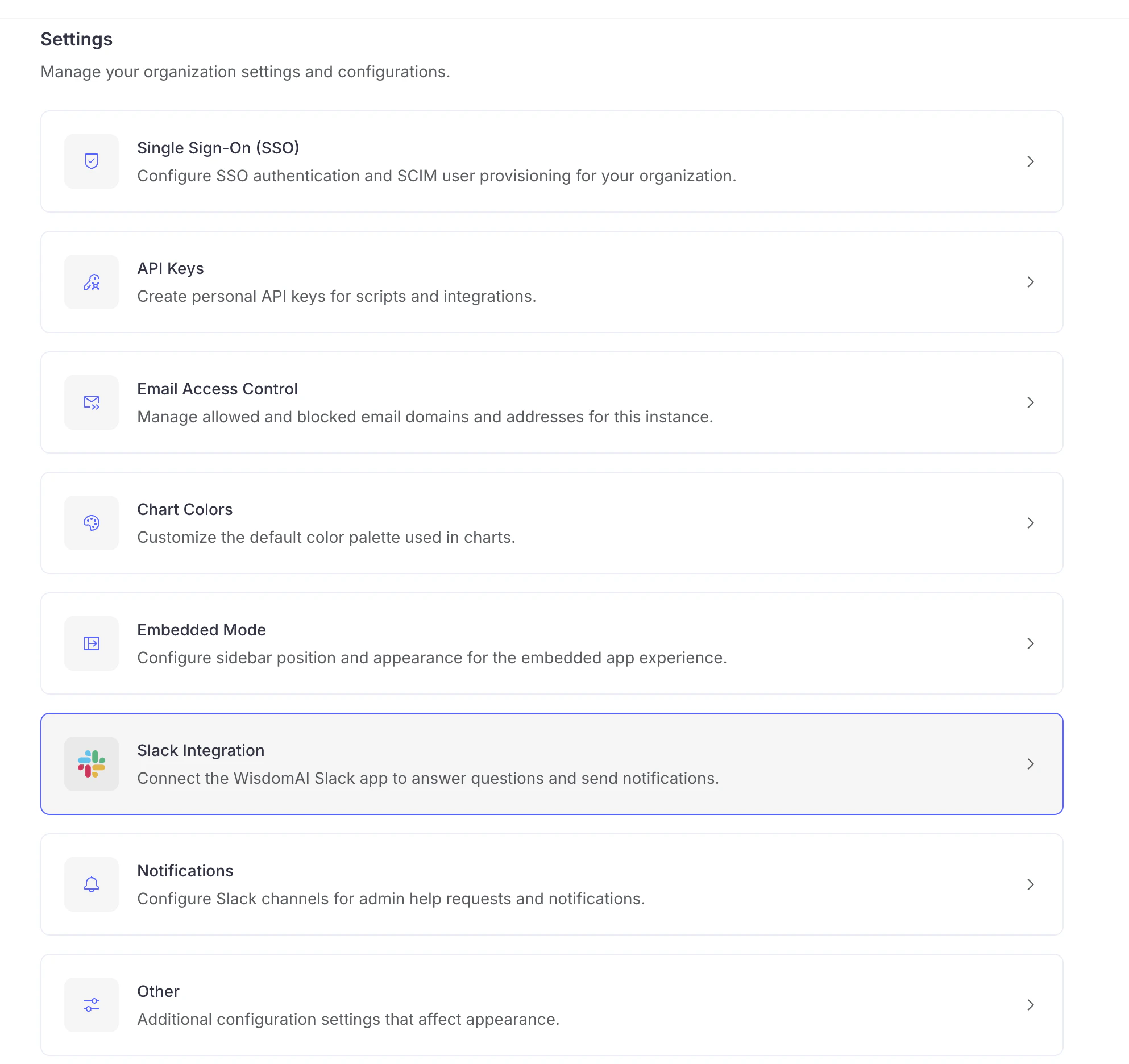
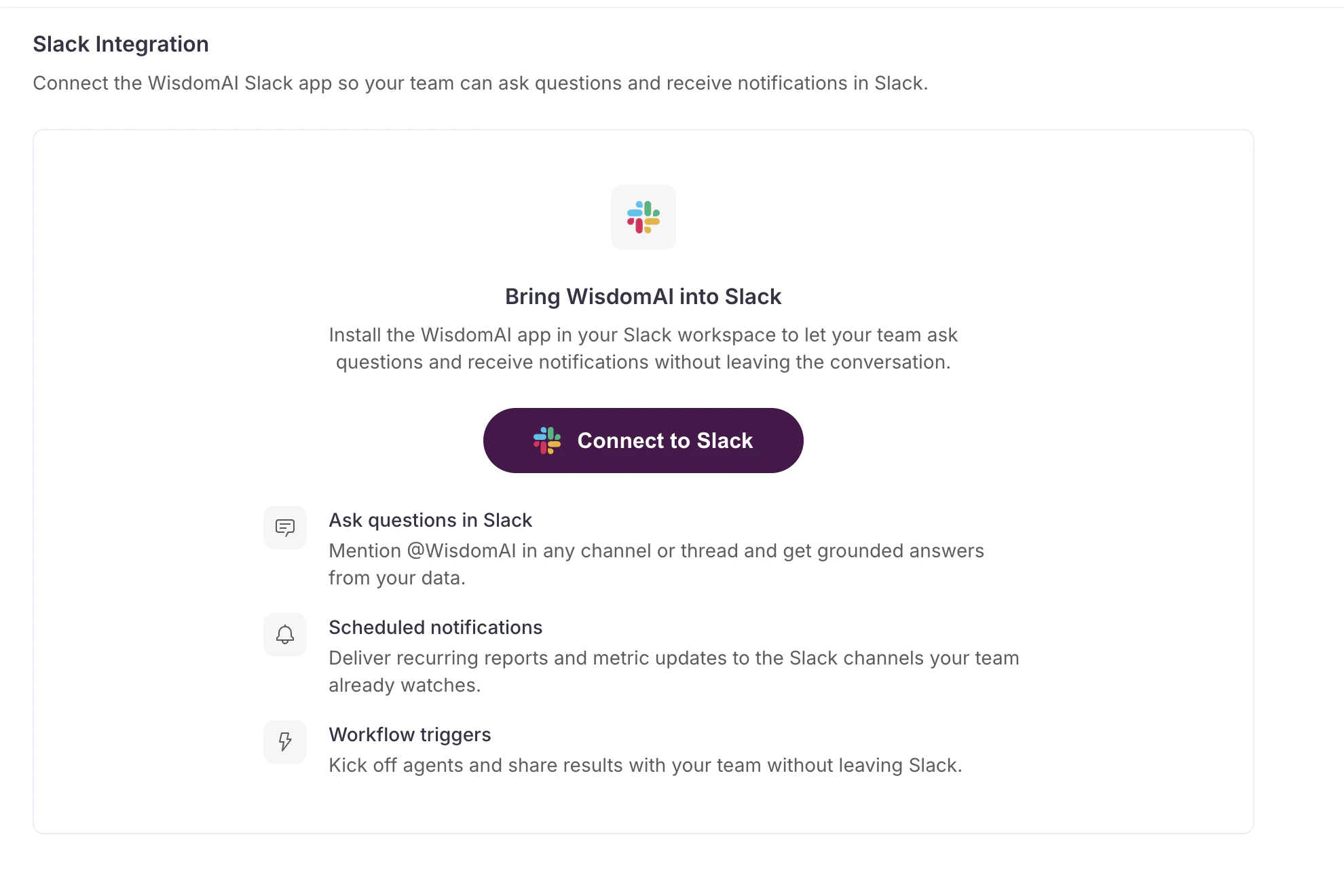
- The Slack Integration page introduces what the WisdomAI Slack app can do. Click Connect to Slack to start the install.
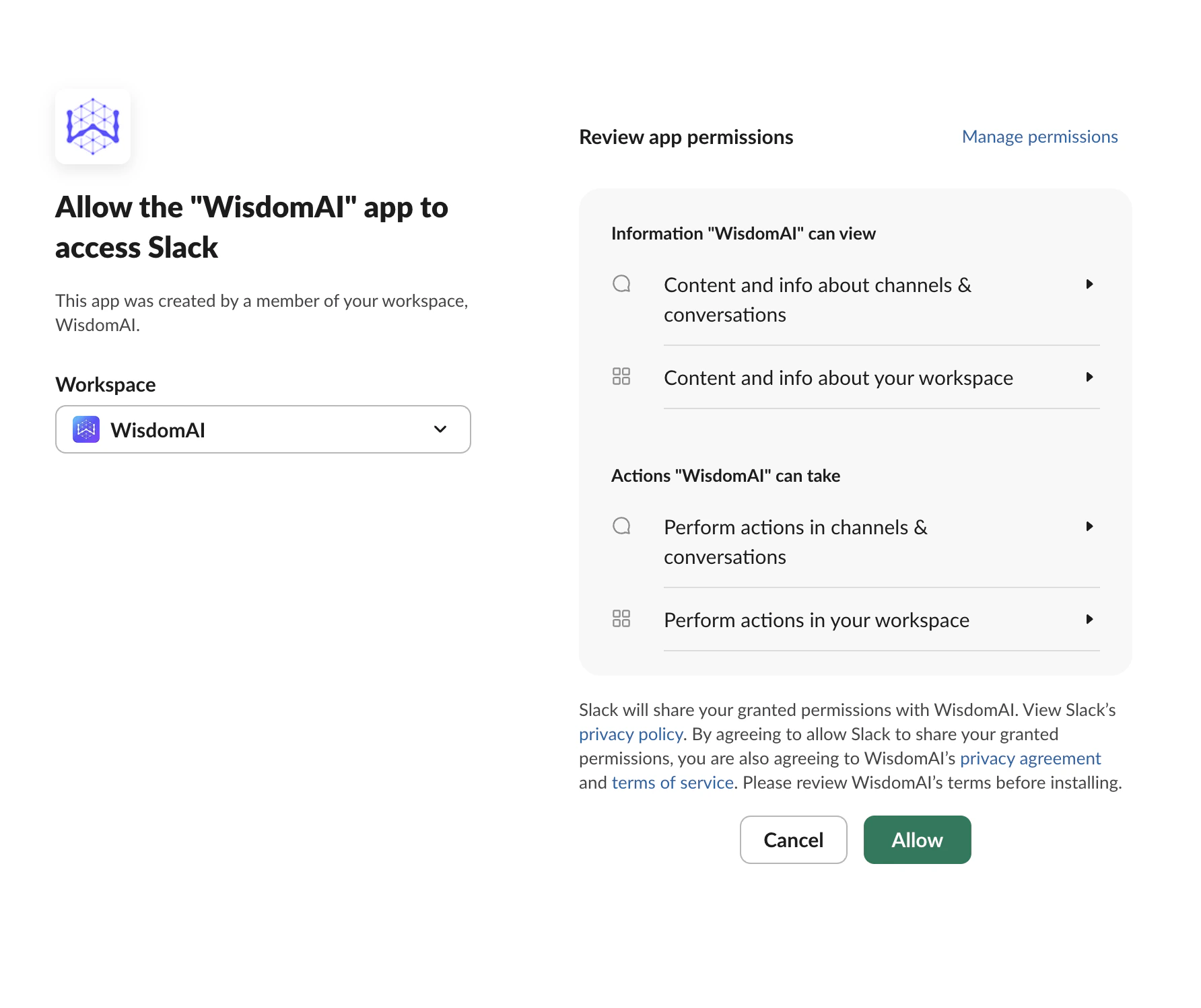
- Authorize the application on the Slack page you are redirected to. After reviewing the permissions WisdomAI is requesting, click Allow to grant access and install the app in your workspace.
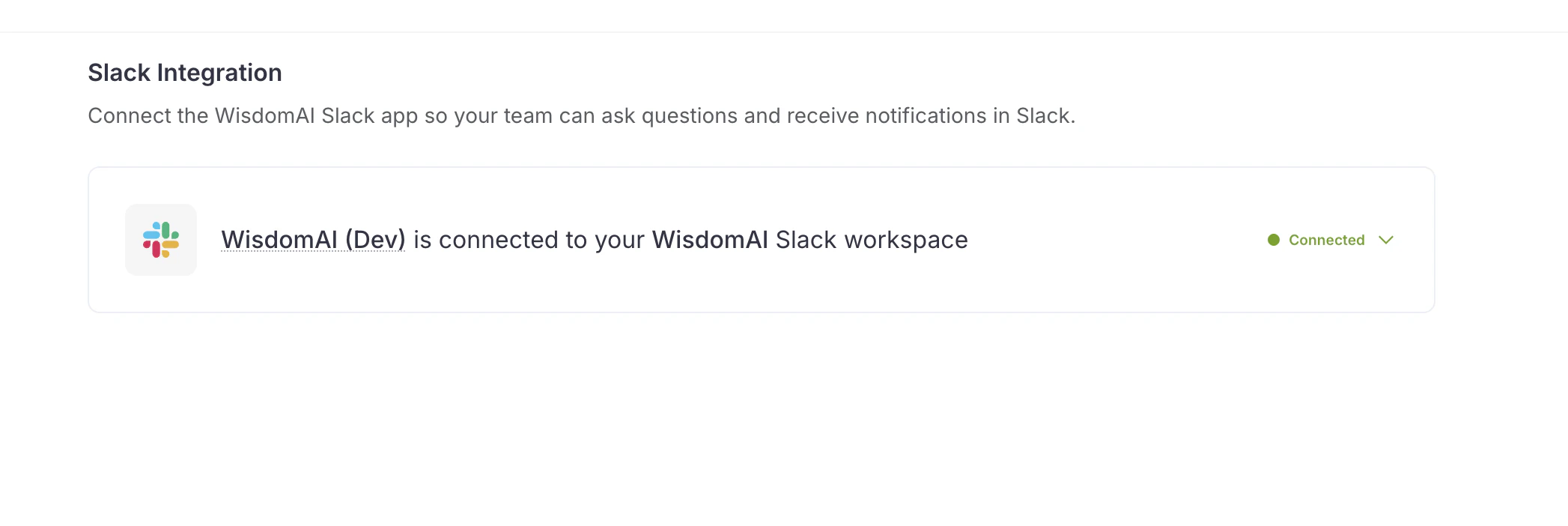
- After authorization, you are returned to the Slack Integration page. The page now shows that the WisdomAI app is connected to your Slack workspace, with a green Connected indicator.
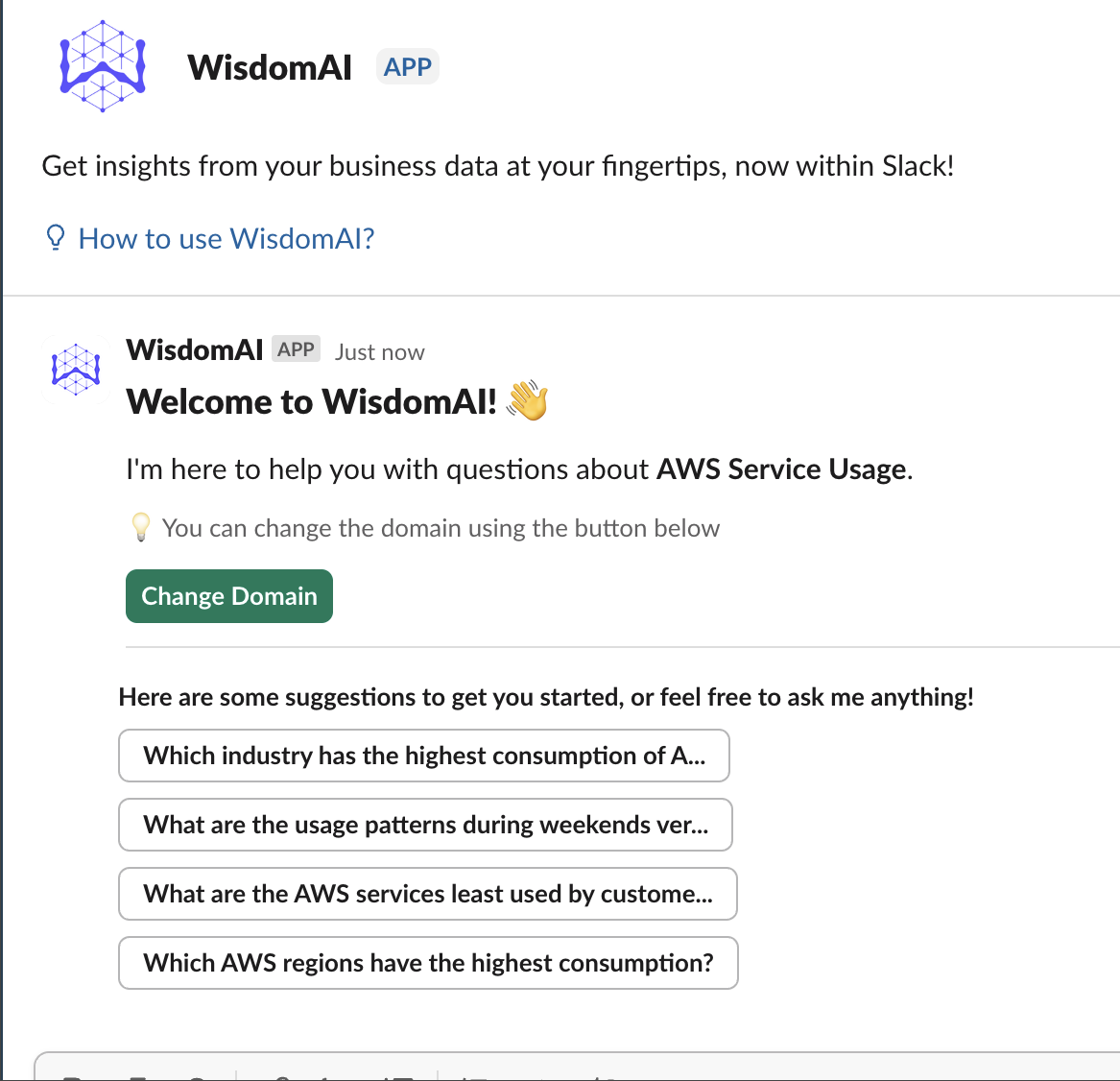
- Look for the @WisdomAI app in your Slack workspace and start using it. When you open a direct message with the app, you’ll see a welcome message and some suggested questions. You can now ask questions in natural language to get insights from your data directly within Slack.
Disconnect the Slack app
To disconnect the WisdomAI app from your Slack workspace:- Open Settings > Slack Integration.
- Click the Connected chip in the upper right of the connection card.
- Select Disconnect Slack workspace from the menu.
- In the confirmation dialog, click Disconnect.
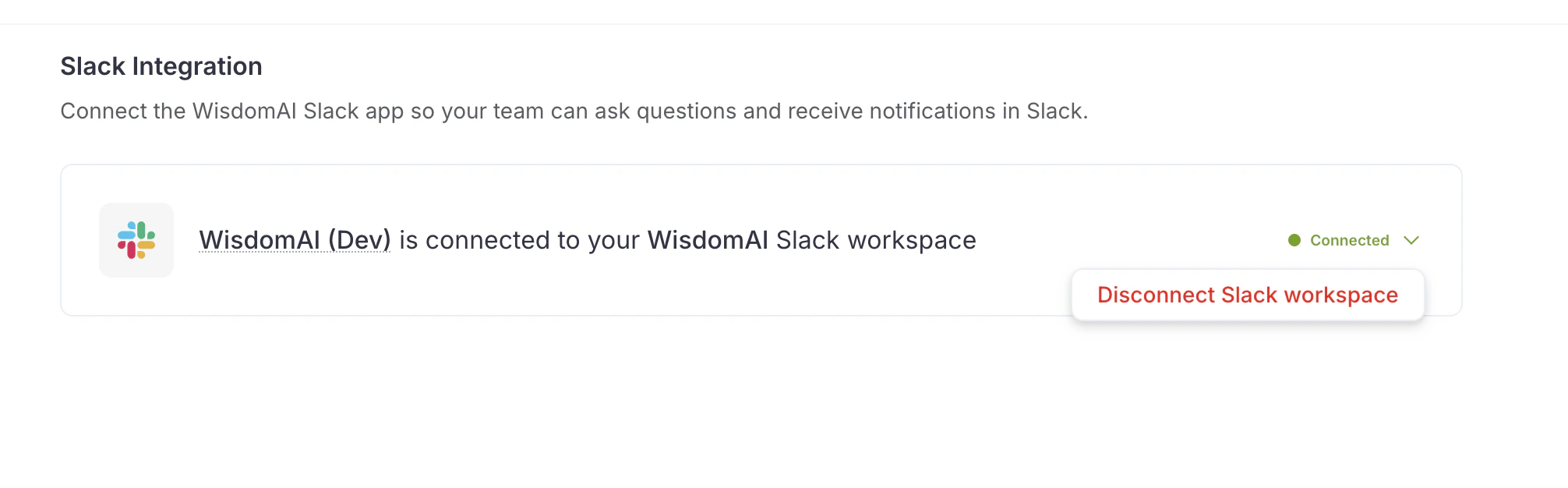
Disconnecting does not uninstall the app from your Slack workspace. The app stops responding to questions and scheduled Slack notifications stop working until you reconnect.
Permissions
When you connect WisdomAI to Slack, you will be asked to grant a set of permissions. These allow the WisdomAI app to receive your questions and post answers back into your workspace. Here is a detailed breakdown of what each permission allows WisdomAI to do:Query your data in Slack
After connecting the app, you can interact with WisdomAI directly from your Slack workspace.- Ask a Question: You can start a direct message with the WisdomAI app or mention it in a channel to ask a question in natural language. The app will confirm that it is processing your request.
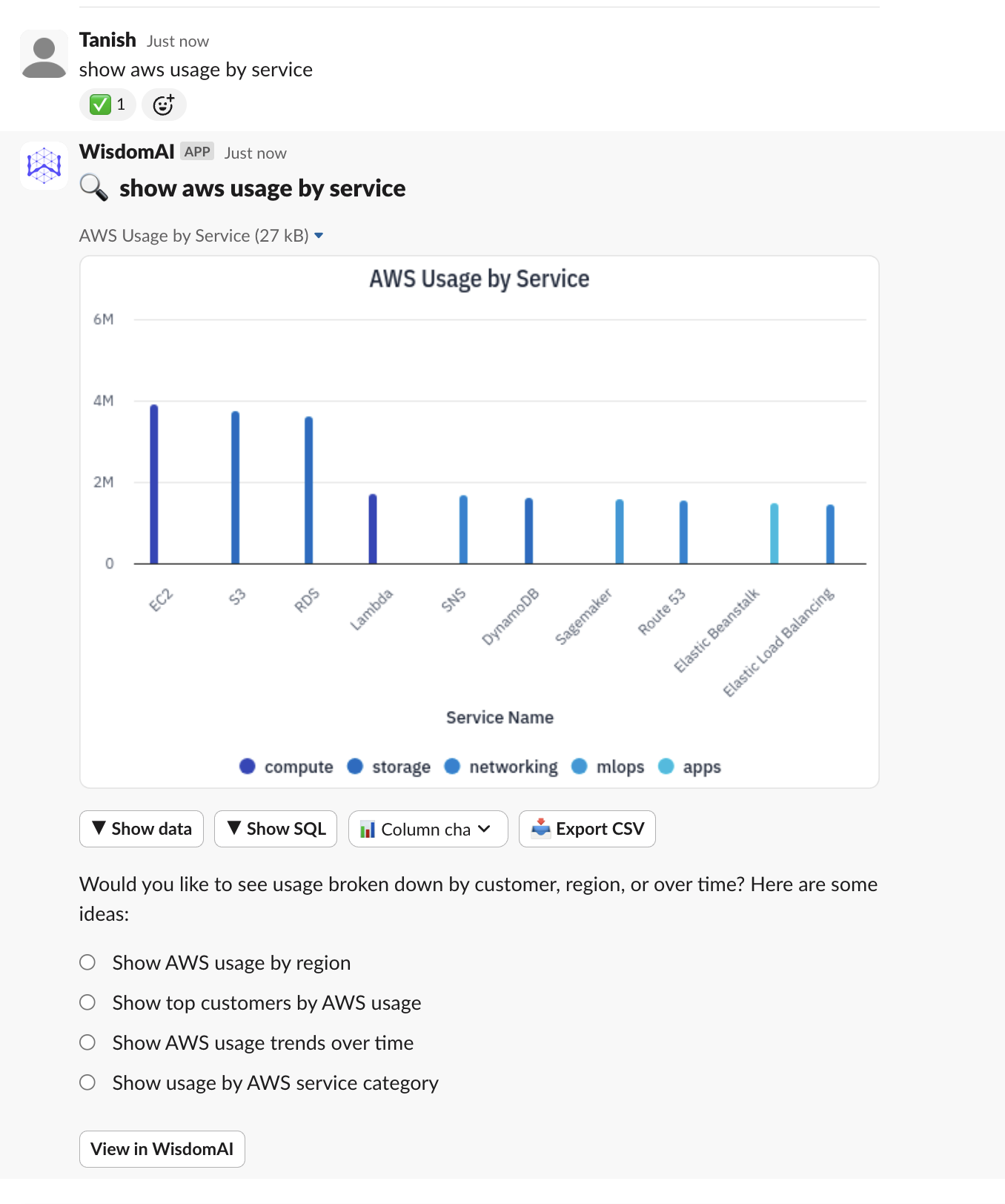
- Receive an Answer: WisdomAI delivers an interactive response directly in Slack. A typical answer includes:
- A chart visualizing the data, such as a bar chart of AWS usage by service.
- A set of suggested follow-up questions to guide your analysis.
- Buttons to Show data, Show SQL, change the chart type, or Export CSV.
- Interact with Results: You can modify the visualization and explore the data without leaving Slack. For example, you can change the chart to an Area chart or expand the data table to see the specific values for each service. See the example below:
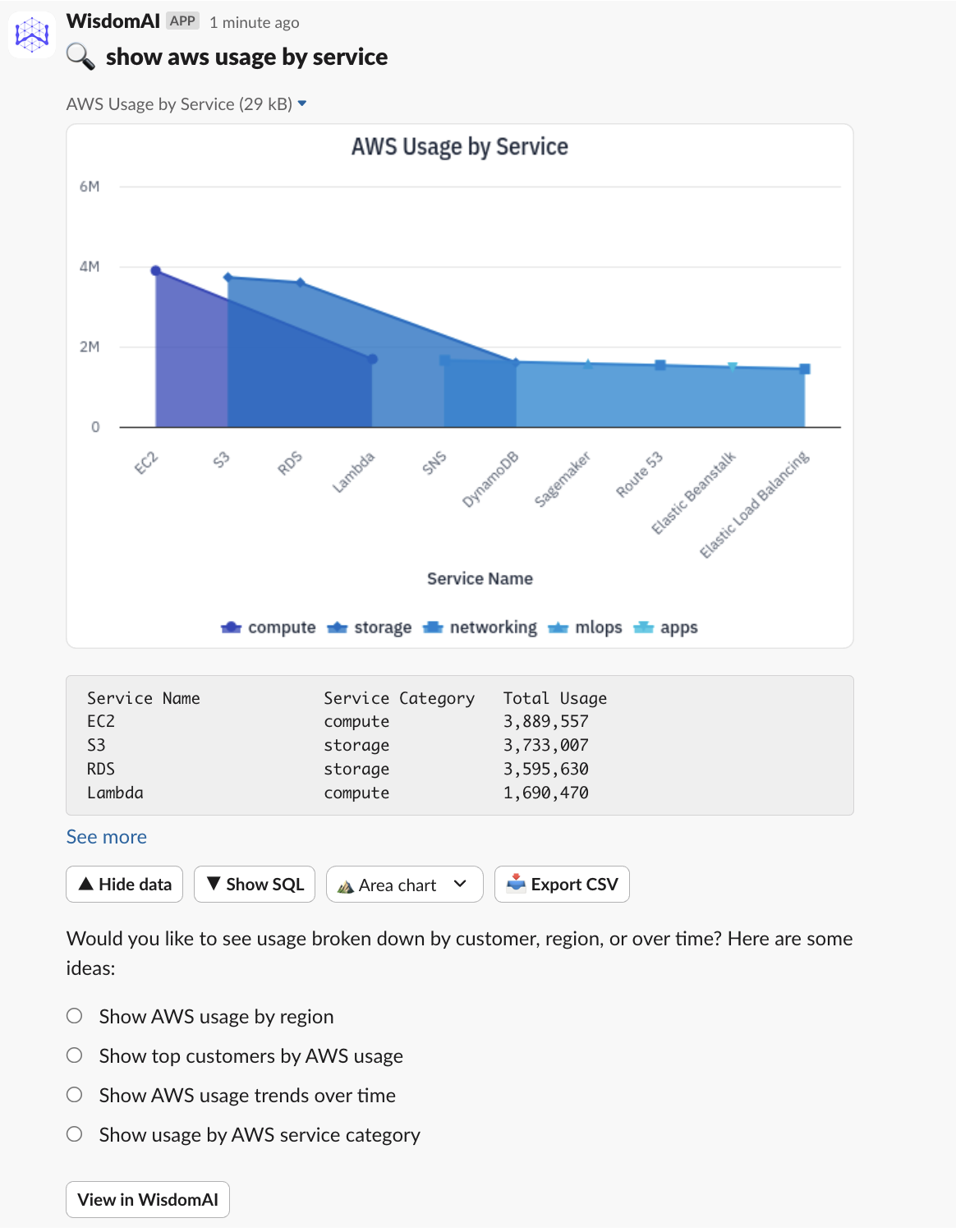 You can also select View in WisdomAI to continue your analysis in the main web application.
Next steps
Embed Chat
Discover how to embed conversational AI chat interfaces
Embed a Dashboard
Learn how to embed interactive dashboards and visualizations
Impersonate User API
Detailed documentation for the authentication API