

Before you start
To perform these tasks, you must have Site Administrator permissions. Regular users or organization-level admins cannot access the global Organizations manager. Read the Access Management guide to learn more about roles and permissions.Create a new organization
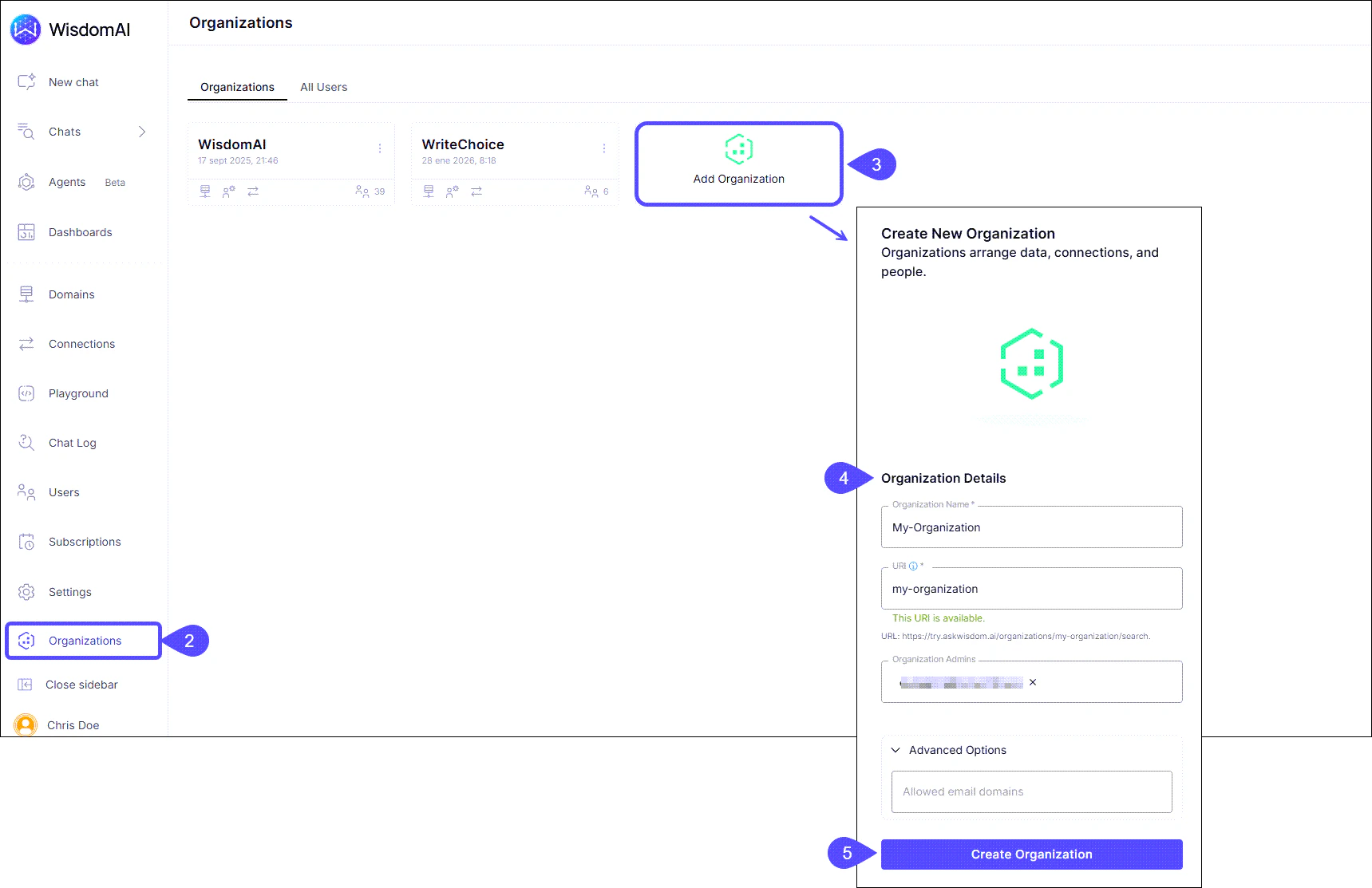
New organizations are provisioned by Site Administrators through the platform. To do this, follow the steps below:- Sign in to WisdomAI as a Site Administrator.
- Click the Organizations icon in the left-hand navigation menu.
- Click the Add Organization option.
-
In the modal that opens, under Organization Details:
a. Enter the Organization Name (e.g., “Finance-Dept”).
b. Define the URI (e.g.,
finance). This creates a unique access point:https://try.askwisdom.ai/organizations/finance. c. Add Organization Admins by entering their email addresses. d. (Optional) Expand Advanced Options to define Allowed email domains. - Click Create Organization.
If you encounter any issues during provisioning, please contact the WisdomAI support team for assistance.
Manage existing organizations
Once created, you can manage organizations directly from the dashboard using quick-access icons.Modify settings and access
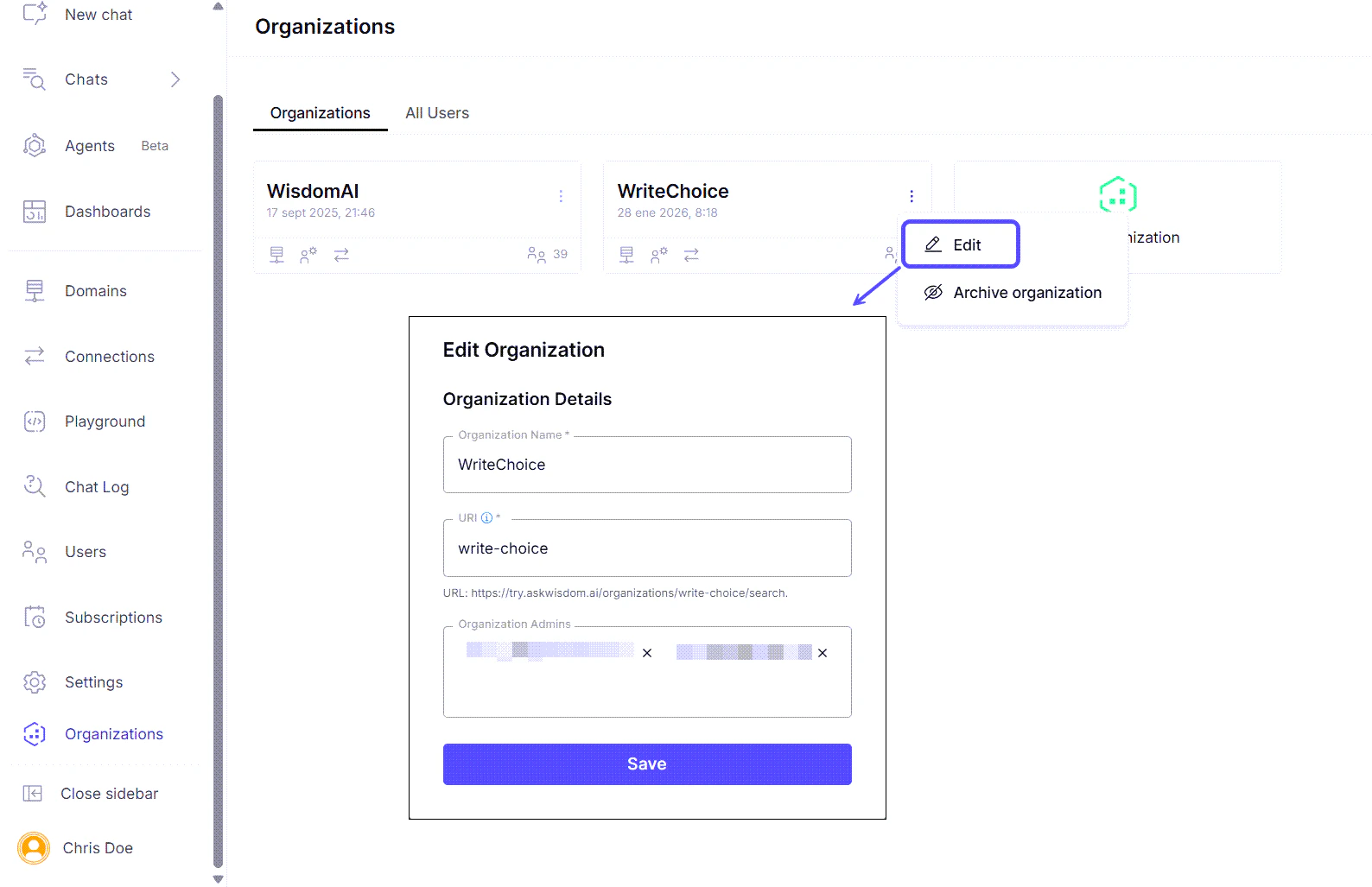
- Edit Details: Click the three-dot menu (…) on an organization tile and select Edit to update the name, URI, or administrative owners.
- Access Domains: Click the monitor icon to configure AI domains specific to that organization.
- Manage Connections: Click the **sync/connections **(arrows)icon to set up or modify data source integrations for that environment.


User administration
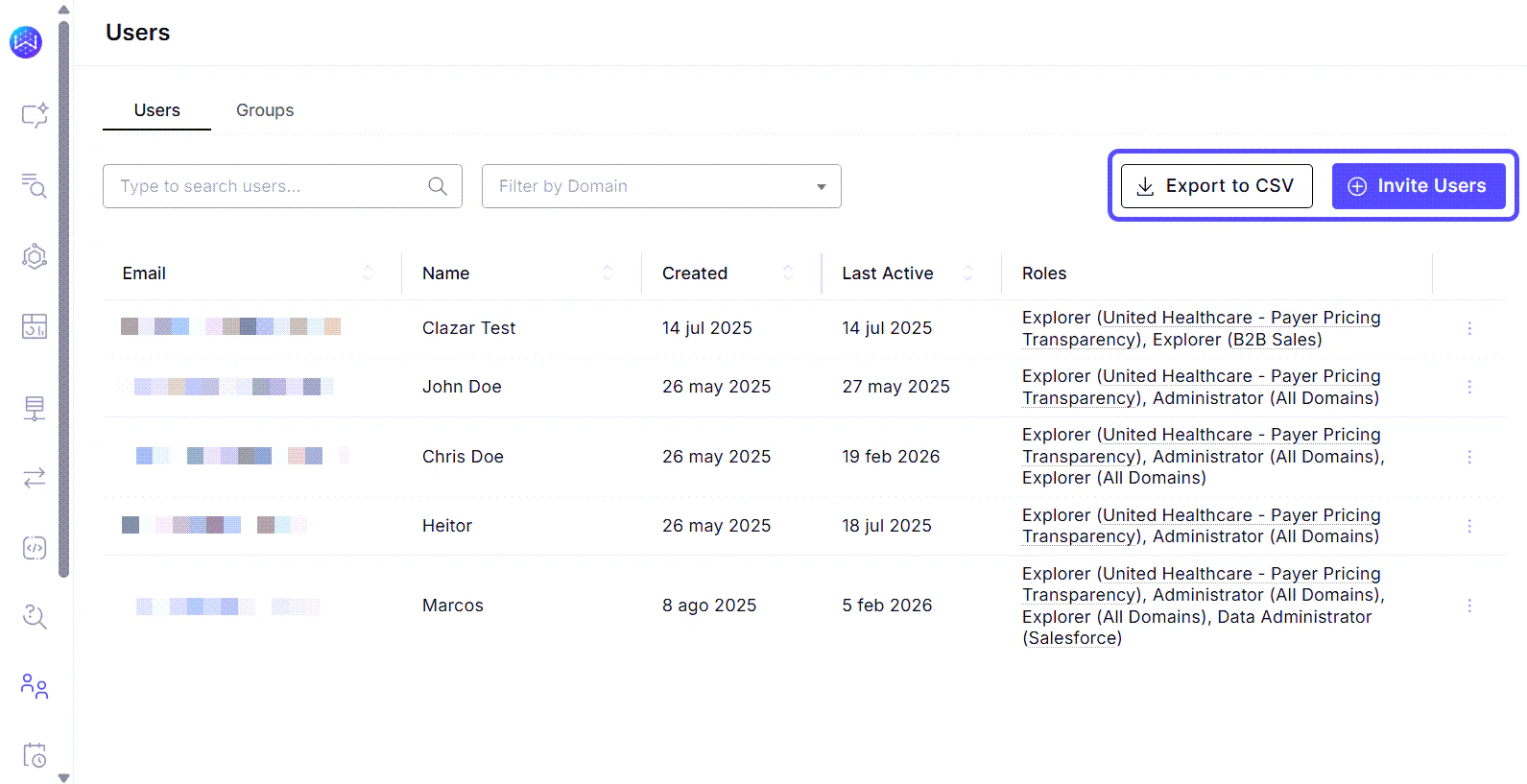
Click the person icon to open the user management view:- Invite Users: Click Invite Users to grant access to the specific organization.
- Export List: Click Export to CSV to download a record of all users assigned to the organization.
Archive an organization
If an environment is no longer needed, you can deactivate it to prevent further access.- Click the three-dot menu (…) on the organization tile.
- Select Archive organization.
- Confirm the action in the dialog box.
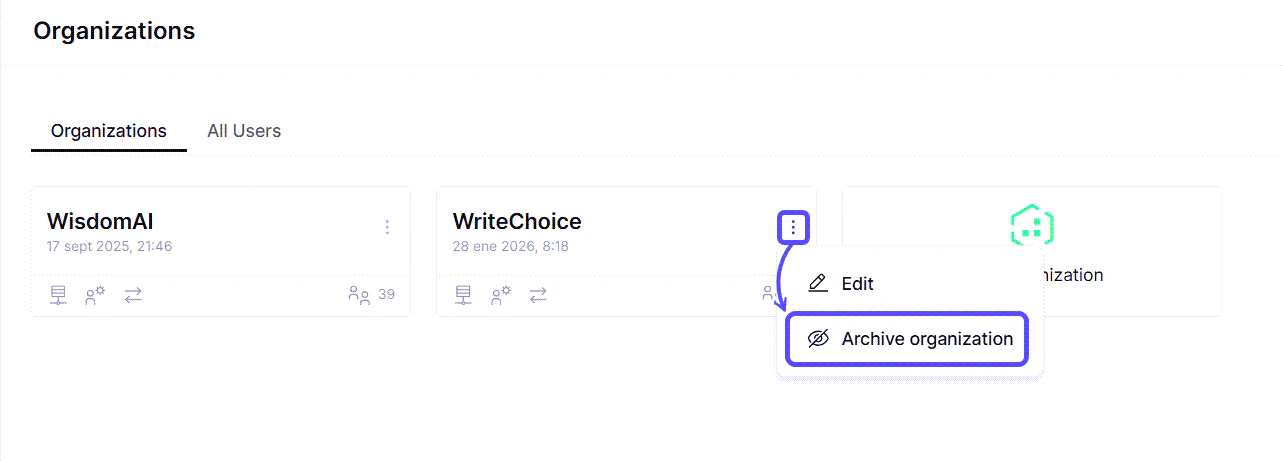
Archiving deactivates the organization immediately, meaning users will no longer be able to log in. However, your data is not deleted; it remains securely stored in case you need to reactivate the environment in the future.
Next steps
Row-Level Access Control
Learn how to restrict data access at the row level for specific users or roles.
Access Management
Control user permissions and manage access to platform features and data.
Supported Data Sources
Explore the full list of databases and platforms you can connect to the system.
How WisdomAI Works
Understand the core concepts and architecture behind the platform’s data analysis capabilities.
Quickstart: Connect and Test
Walk through the initial setup to connect a data source and run your first query.
Manage Domains
Configure how WisdomAI accesses data, understands your business context, and evaluates response accuracy.