
After an Agent is created, it appears in a list on the main Agents page. From this page, you can manage all the Agents you have access to.Documentation Index
Fetch the complete documentation index at: https://docs.wisdom.ai/llms.txt
Use this file to discover all available pages before exploring further.
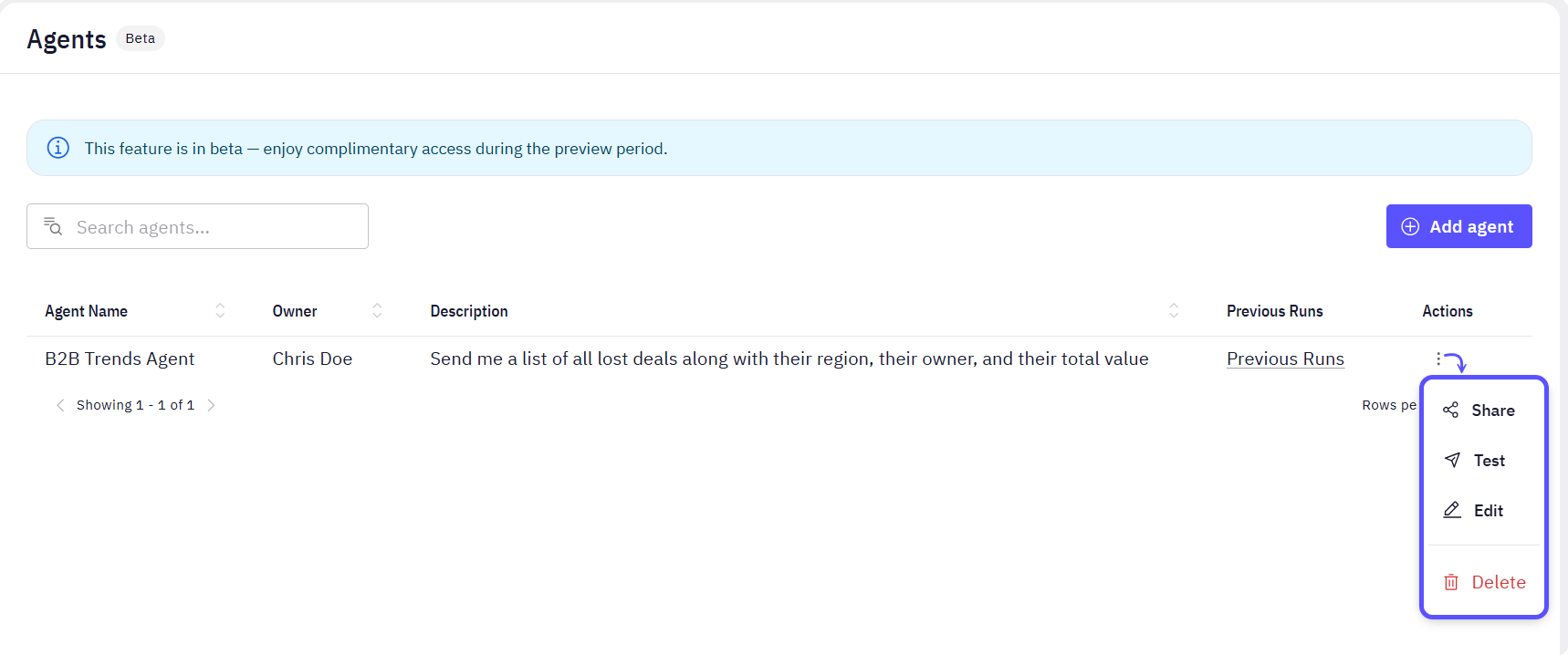
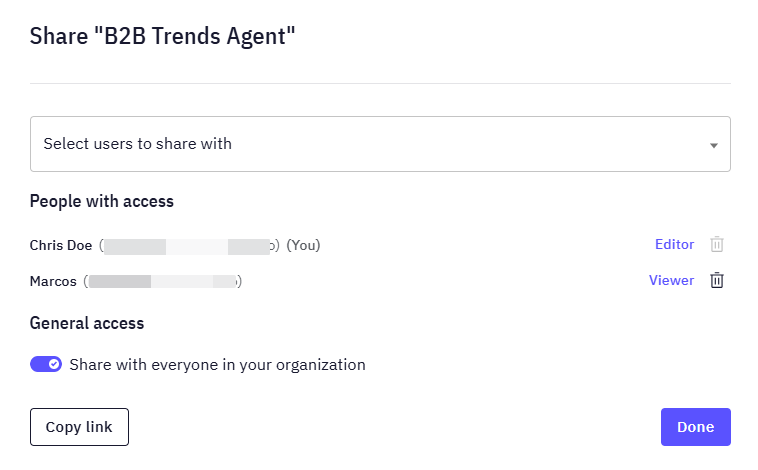
- Share: Allows you to share the Agent with other users for collaboration.
- Manage access: grant Editor or Viewer access for that agent.
- Manage general access: share it with everyone in your organization.
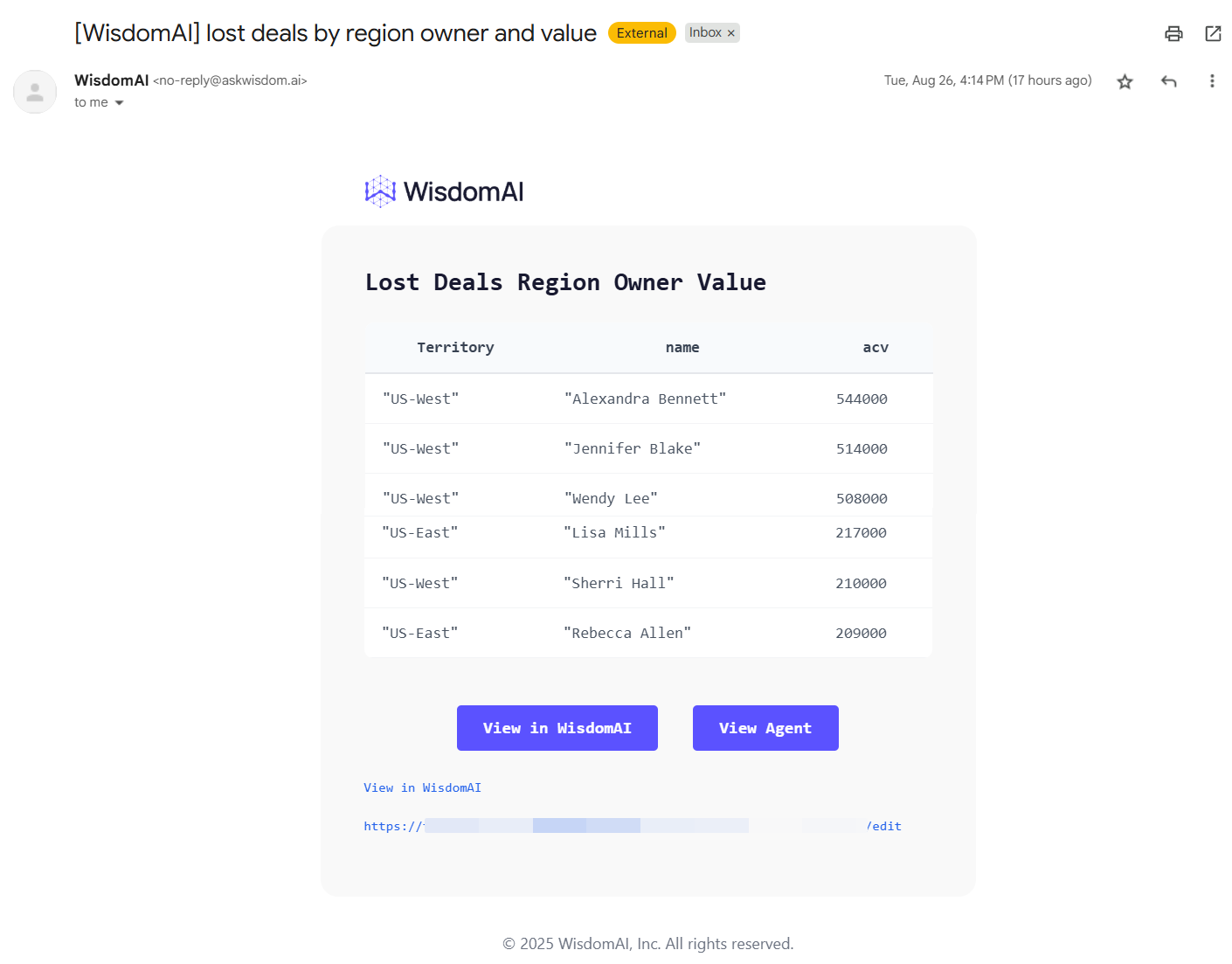
- Test: Manually runs the Agent’s entire workflow. The Agent will evaluate its trigger (if enabled) and, if the conditions are met (or if the trigger is disabled), run the full analysis and send a notification.
Once you get the notification, you will be able to:
- View in WisdomAI: it takes you to the chat window.
- View Agent: it takes you to the agent configuration page.
- Edit: Opens the configuration form, allowing you to modify the Agent’s name, trigger, work description, or schedule.
- Delete: Permanently removes the Agent. This action cannot be undone.
View previous Runs
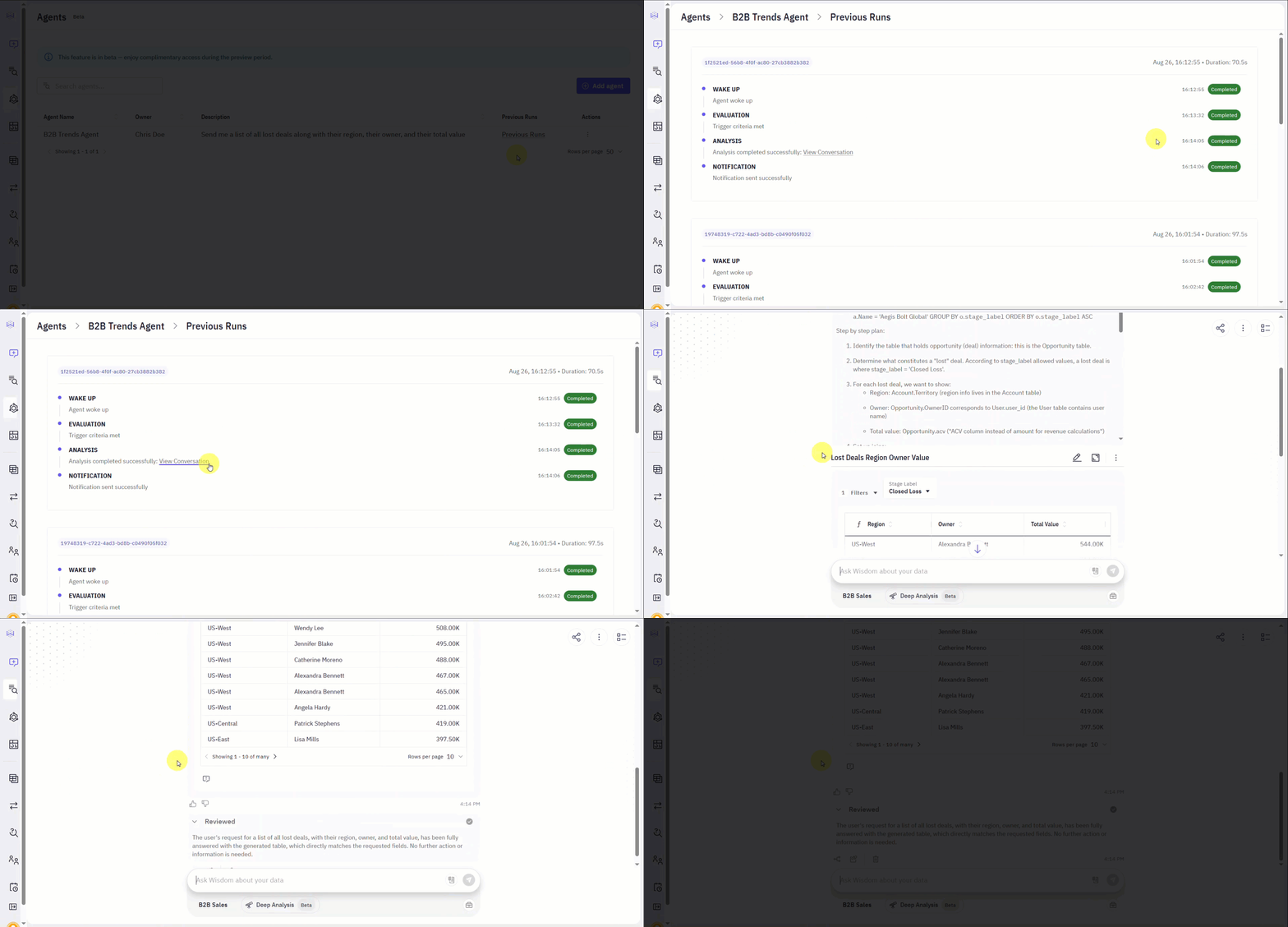
You can view a detailed history of every time an agent has run. This log is useful for auditing and debugging an agent’s behavior over time.- To see the log, find your agent on the Agents page and click the Previous Runs link in its corresponding row.
- This will take you to the Previous Runs page, which displays a timeline of all past executions. Each entry in the log shows the status of the agent’s key stages:
| Stage | Description |
|---|---|
| WAKE UP | Confirms the agent started at its scheduled time. |
| EVALUATION | Shows whether the trigger criteria were met. |
| ANALYSIS | Confirms if the analysis was completed successfully. |
| NOTIFICATION | Shows if the notification was sent successfully or if there was an error. |
- If an analysis was successfully generated, you can click the View Conversation button within the ANALYSIS step. This will take you to the specific conversation where you can inspect the detailed results and the exact query that was run for that execution.
RBAC
Use Role-Based Access Control (RBAC) to manage collaboration. Refer to the table below to understand the differences between Editor and Viewer permissions and how they respect existing data access rules.| Feature | Editor | Viewer |
|---|---|---|
| View Agent & Run History | ✅ | ✅ |
| Edit Configuration | ✅ | ❌ |
| Trigger/Test Runs | ✅ | ❌ |
| Delete Agent | ✅ | ❌ |
Next steps
Connect to Slack
Set up the Slack integration to receive notifications from your agents and stories.
Use Deep Analysis
Perform in-depth investigations for complex questions and receive a detailed report.