
Prompt Mode is the fastest way to build an agent in WisdomAI. Describe what you want the agent to do in plain language, test it, and the agent is ready. This tutorial walks through creating your first Prompt Mode agent end-to-end.Documentation Index
Fetch the complete documentation index at: https://docs.wisdom.ai/llms.txt
Use this file to discover all available pages before exploring further.
- This guide uses sales-monitoring scenarios, but you can apply these steps to any metric you need to track.
- The Agents feature is currently in beta.
- If you need multi-step workflows with branching logic, see Visual Mode instead.
Before you begin
Make sure you have the following:- Access to WisdomAI: You need an active account to access the Agents feature.
- A Goal in Mind: Know which business metric you want to monitor (e.g., sales, user sign-ups, error rates).
- (Optional) Slack Integration: If you want to send alerts to a Slack channel, an administrator must first connect your Slack workspace to WisdomAI.
Read the Slack guide to learn how to do it.
Create an Agent
To create a new agent, follow these steps:- From the sidebar on the left, select the Agents tab.
- If no agents have been configured, you will see a welcome screen. Click Get started.

- Select a Domain: Choose the data domain the Agent will run in.
- Agent Name: Provide a descriptive name for your Agent to easily identify it later.
- Configure the Activation Trigger. The optional trigger allows you to choose between two modes of operation: scheduled reporting or conditional monitoring.
- Trigger Disabled (Scheduled Reporting): Leave the trigger disabled to use the Agent for scheduled reporting. In this mode, the analysis will always run and send out a notification according to the schedule you set.
- Trigger Enabled (Conditional Monitoring): Enable the trigger to use the Agent as a monitor for specific conditions. In this mode, an analysis and notification are sent only if the trigger’s conditions are satisfied.
- In the text box, describe the condition. You can write complex criteria. For example:
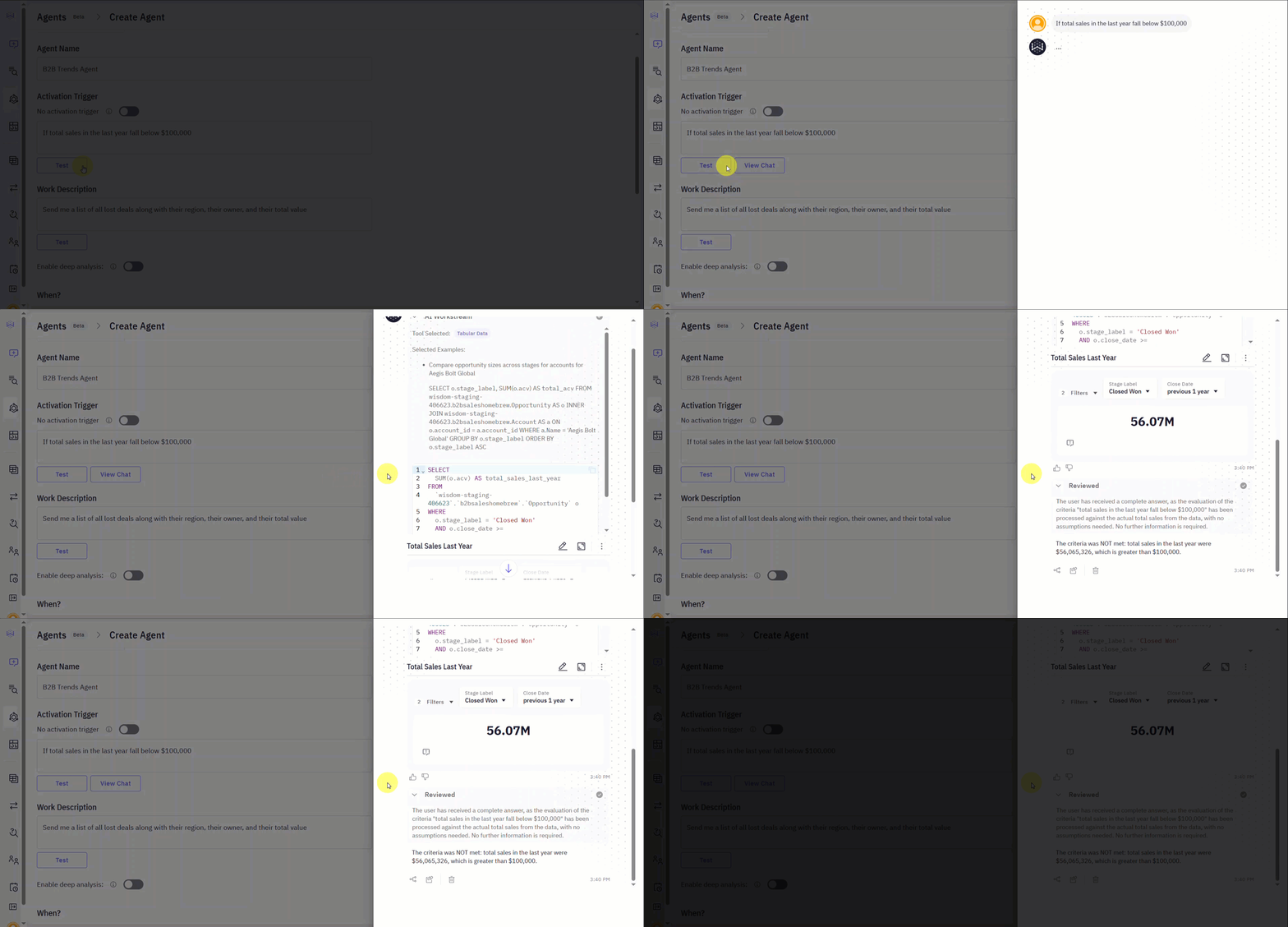
If total sales in the last year fall below $100,000. - Click Test to verify whether the condition is currently met based on your data.
- In the text box, describe the condition. You can write complex criteria. For example:

-
Define the Work Description. This is the task the Agent will perform if the trigger condition is met.
- In the work description text box, describe the analysis and action you want in natural language. For example:
Send me a list of all lost deals along with their region, their owner, and their total value. - Click Test to run the analysis and see a sample of the output. This allows you to preview the results that will be sent in the notification.
- In the work description text box, describe the analysis and action you want in natural language. For example:
-
Set the Schedule for the Agent to run.
- Choose a start date and time.
- Define the frequency, such as every day or week.
-
Configure Notifications to define how you will receive the analysis results.
- Email: Select this option and enter one or more email addresses. The notification will contain charts and tables from the analysis.
- Slack: Select this option and specify the Slack channel names.
- Click Create Agent to save and activate it.

- You will receive a notification alerting you that you have been subscribed to that Agent. From there, you can directly access it using the View Agent button. This is what an email notification looks like:

Test an Agent during configuration
While creating or editing an Agent, you can test its two main components, the Activation Trigger and the Work Description, independently before saving. This helps you refine each part and ensure the Agent will behave as expected.- Test the Activation Trigger: Below the trigger text box (visible only when the trigger is enabled), click Test to verify if your condition is currently met based on the data. This is useful for verifying that your natural language criteria are written correctly and will activate when you expect them to. The test will show you if the trigger would fire and why.
- Test the Work Description: Below the work description text box, click Test to run the analysis and preview the output. This allows you to see a sample of the report that the Agent will generate, so you can adjust the description to get the exact information you need in your notifications.
Use Deep Analysis with an Agent
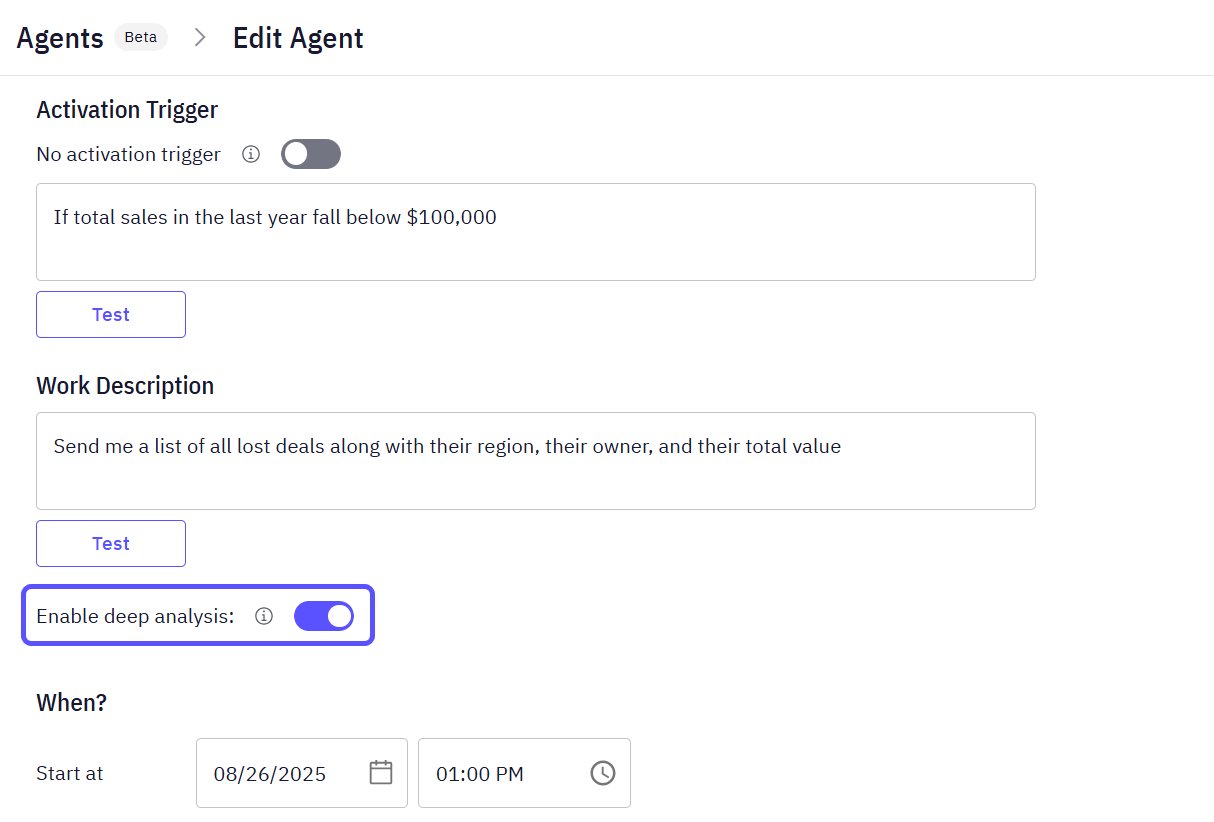
You can have an Agent run its analysis using the Deep Analysis feature. When you enable Deep Analysis for an Agent, it performs a more thorough analysis by exploring multiple aspects of the data and providing comprehensive insights. Deep Analysis runs more thoroughly than a standard agent run, so it takes longer but produces more complete insights.- When creating or editing an Agent, enable the Deep Analysis toggle.
- When the Agent runs, it will automatically generate and execute a multi-step analysis plan based on your work description. You will not be prompted to approve the plan; it will run automatically.
To learn more about this functionality, read the Use the Deep Analysis Functionality article.
Next steps
Manage Your Agents
Explore how to test, edit, share, and view the run history of your existing agents.
Connect to Slack
Set up the Slack integration to receive notifications from your agents and stories.