

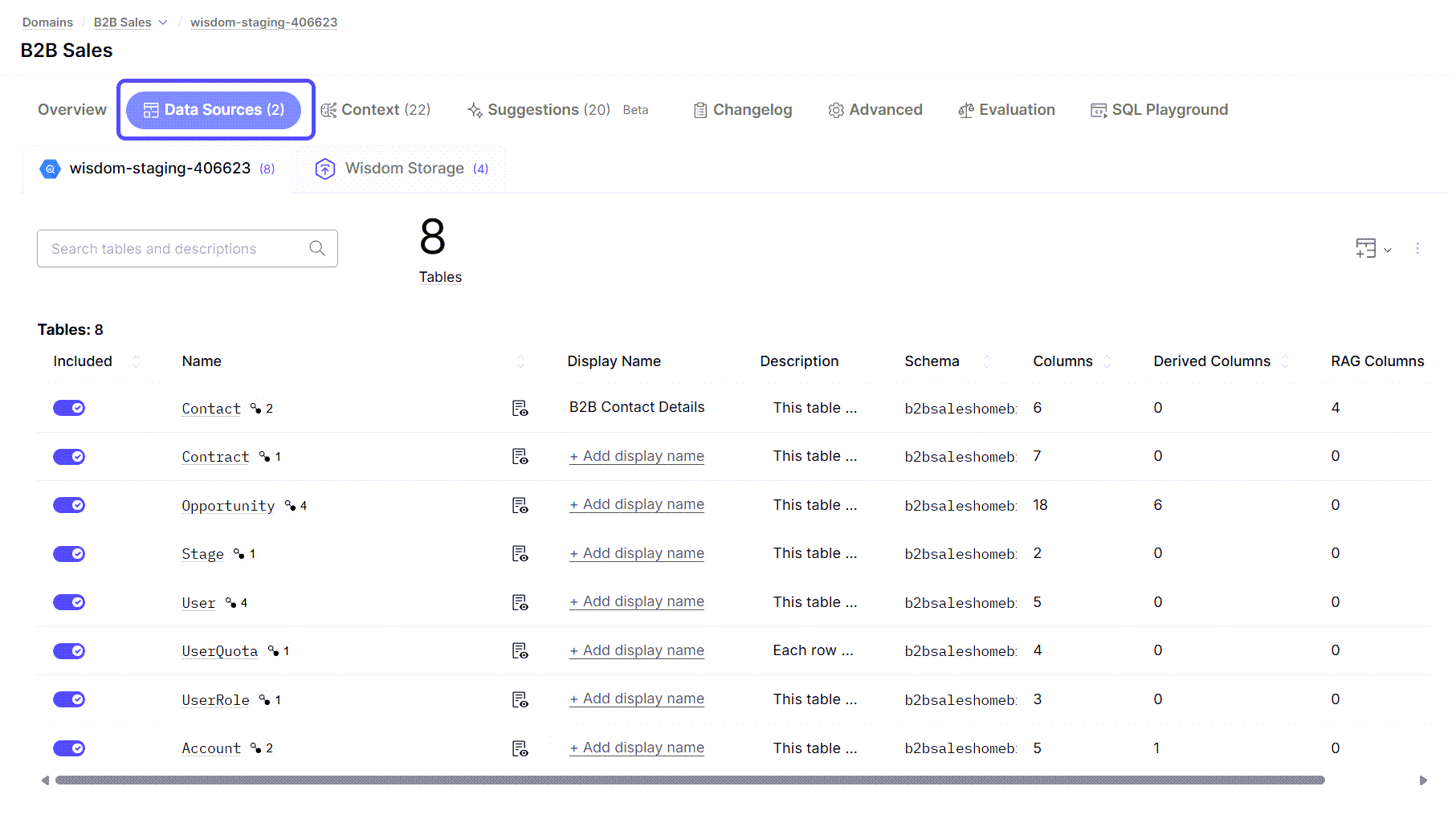
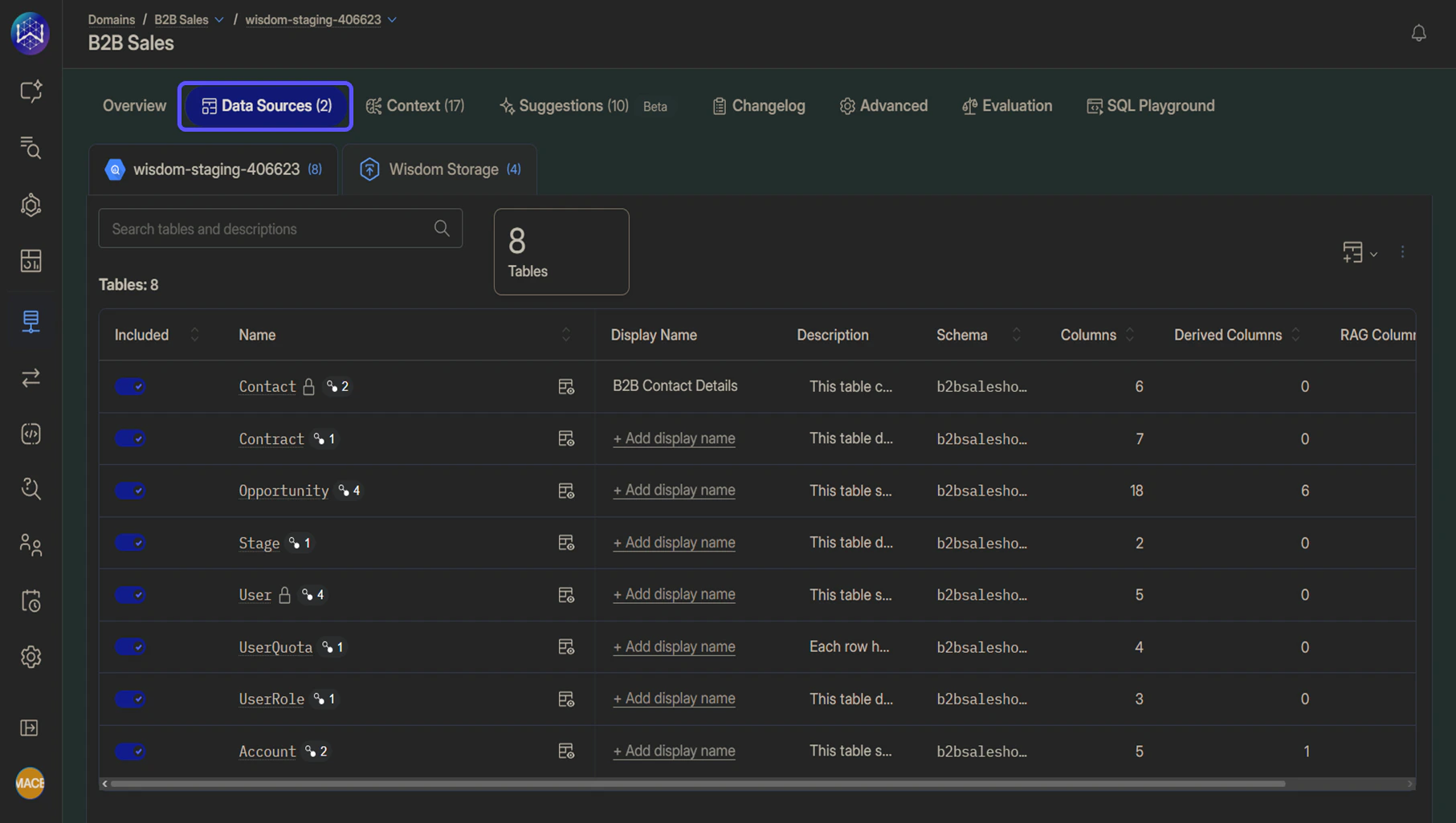
- Database: Use this tab to manage tables sourced from a connected database (for example, BigQuery). You can control which database tables are visible to the AI, add display names and descriptions, and define relationships between tables to accurately model your data. This view also lets you review key schema details, such as columns, derived fields, and RAG-enabled data.
- Tabular Uploads: Use this tab to upload structured files, such as CSV or Excel, and create tables manually within the domain. These uploaded tables behave like database tables for querying, allowing you to control visibility, add descriptions, and review the columns and data types from the uploaded file.
- Files: Use this tab to upload and manage unstructured files that provide additional context to the AI responses.
- MCP Servers: If an MCP server is connected, this tab displays the server’s tools and configuration. See Connect an MCP Server for details.
- Web Search: If Web Search is enabled, this tab lets you configure the source policy that controls which websites the AI can search. See Search the Web for details.
This feature is in beta. Currently, PDFs, DOC/DOCX files, PowerPoint files, txt files, and images are supported.