

To connect an AI client to WisdomAI’s hosted MCP server, see WisdomAI MCP Server.
Prerequisites
- Admin access to your WisdomAI Organization.
- The Server URL (for HTTP/SSE) or Command (for STDIO) of your MCP server.
- Authentication credentials (API Key or OAuth configuration), if required by your server.
Connect an external MCP server
Follow these steps to register your MCP server as a data source in WisdomAI.- Navigate to Connections > Add Connection.
- In the Data source dropdown, select MCP Server.
- Enter a unique Connection name (e.g., “Linear MCP Server”).
- Select the Transport Type supported by your server:
- Streamable HTTP: Uses standard HTTP streaming for communication.
- SSE: Uses Server-Sent Events.
- STDIO: Runs the server as a local process via standard input/output.
- Enter the Server URL (for HTTP/SSE) or connection details.
- Select the Authentication Type:
- None: For public or internal servers without auth.
- API Key: Uses a static key for all requests.
- OAuth: Uses user-based authentication.
- (Optional) Click + Add Header to include custom headers required by your environment.
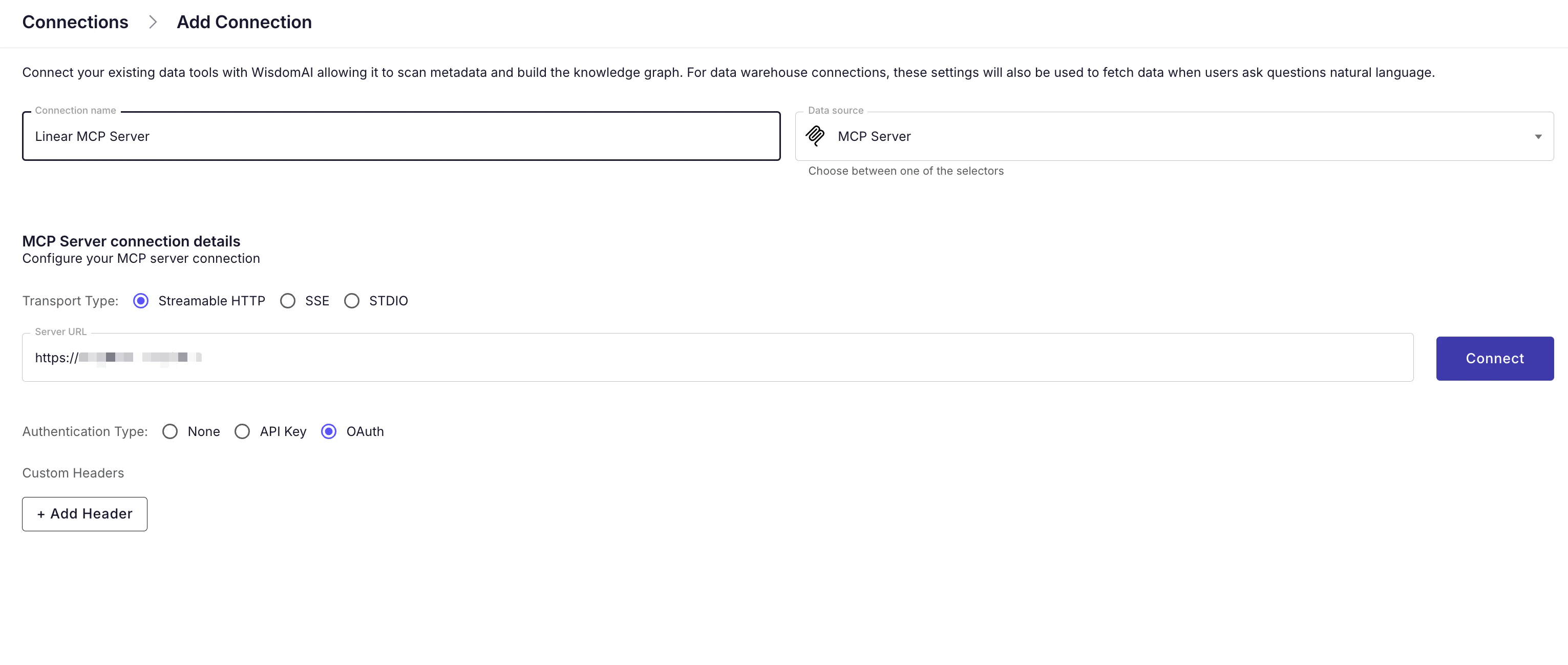
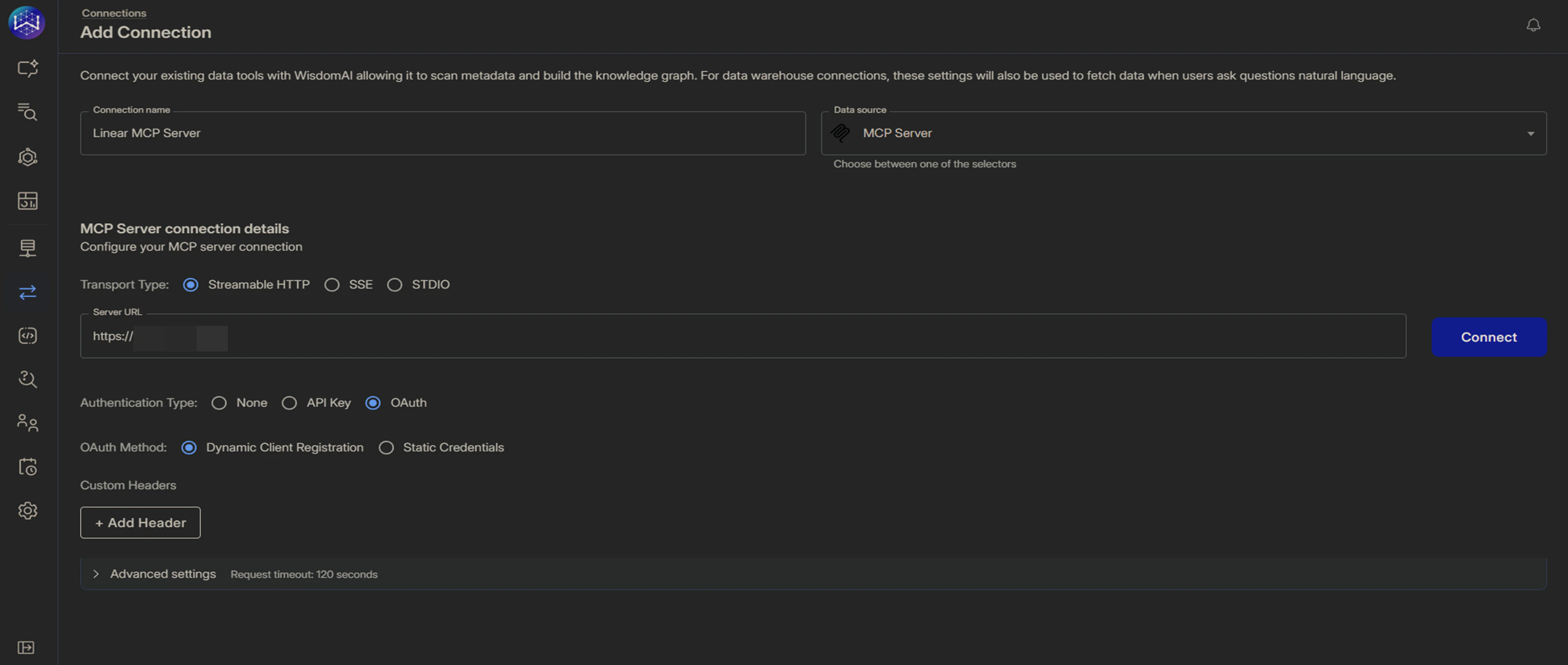
- Click Connect. You may be prompted to authorize the connection to validate the setup.
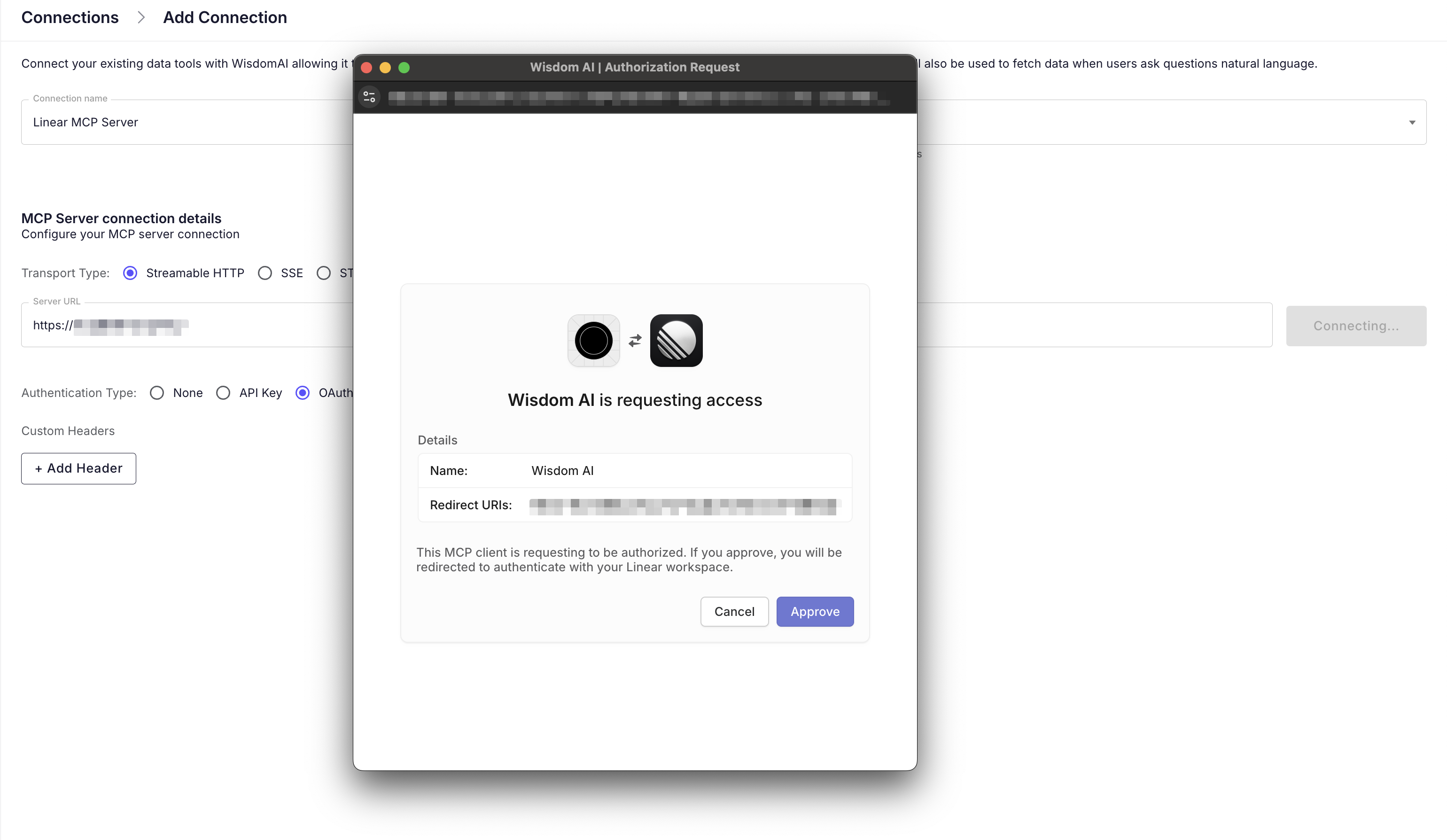
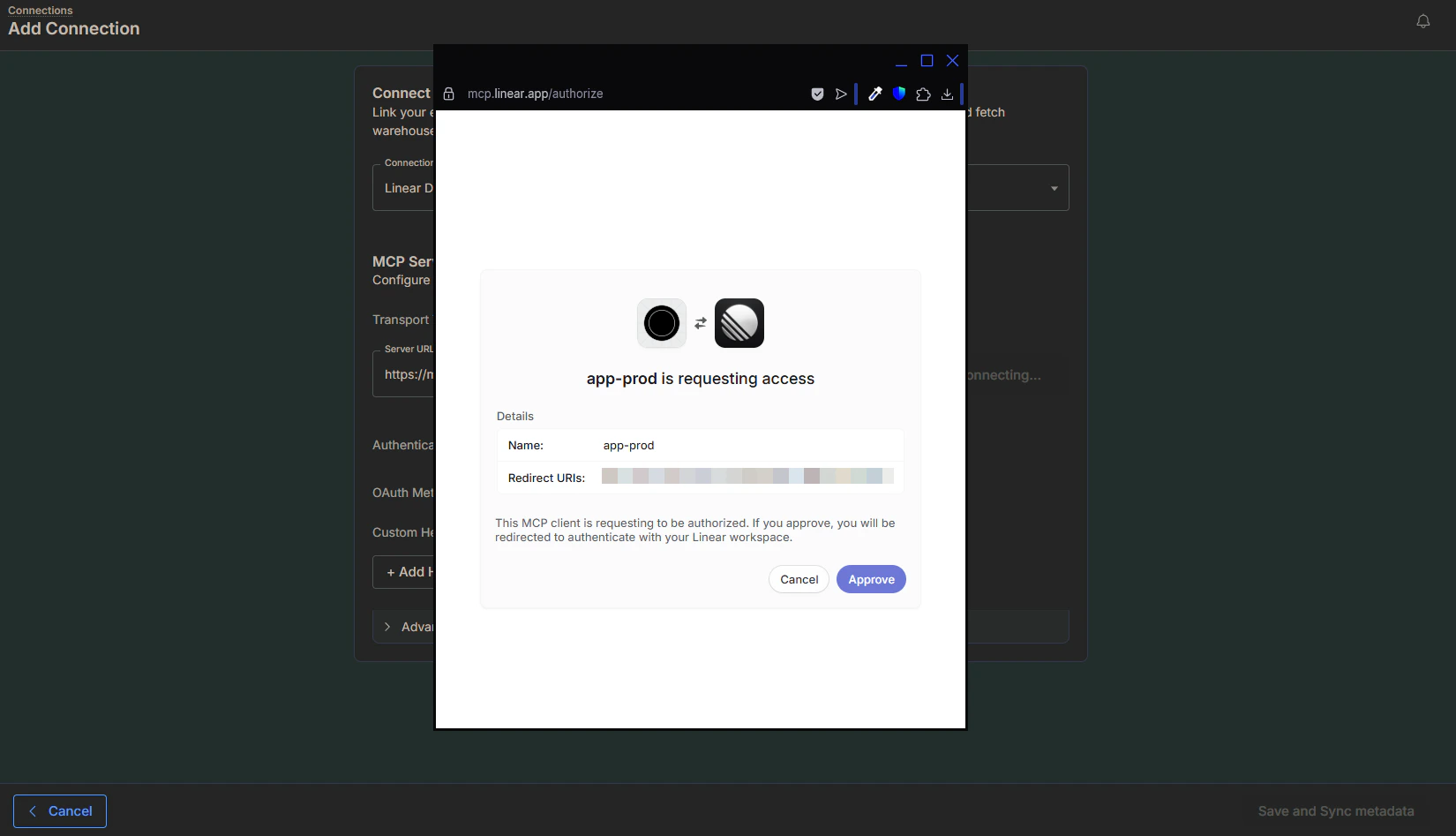
User-based authenticationIf you select OAuth, authentication happens on a user-by-user basis. WisdomAI does not store a global credential. Instead, when a user asks a question that requires data from this server, WisdomAI will prompt them to authenticate via a secure pop-up during the chat session.
Validate the connection
Once connected, you can verify the integration by asking a natural language question in the chat interface.- Start a Chat.
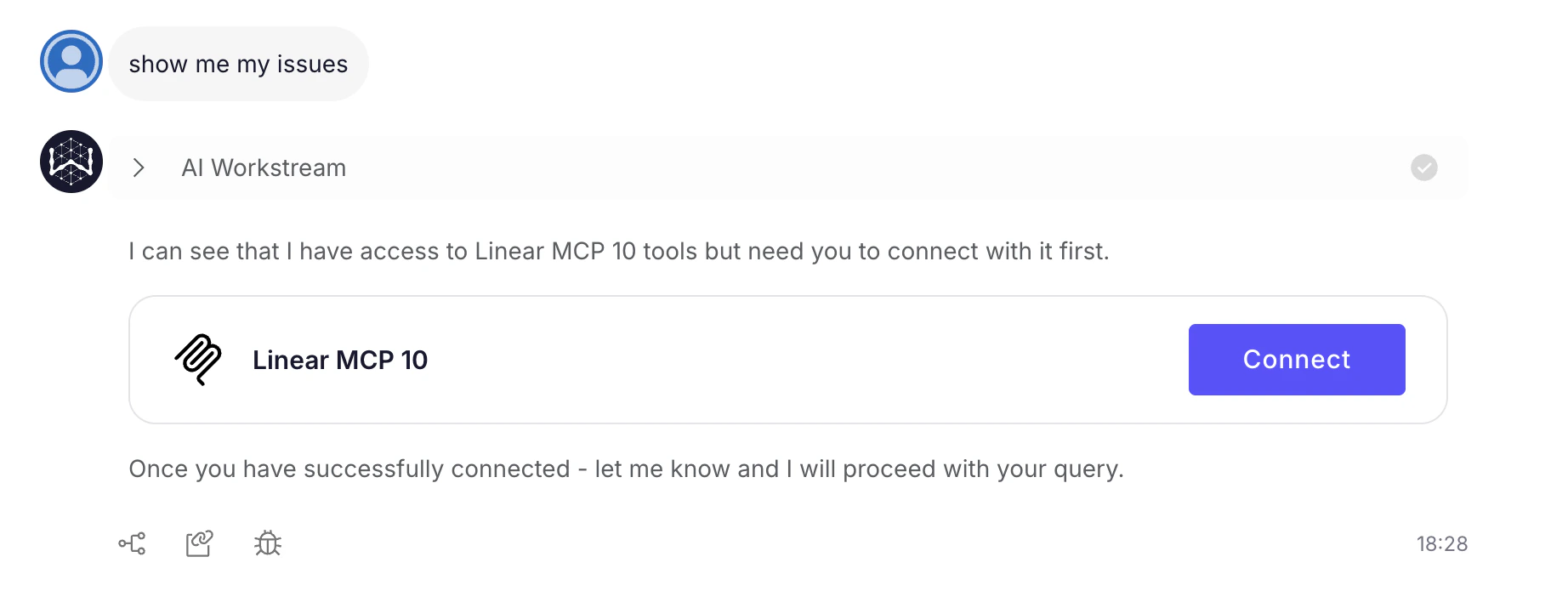
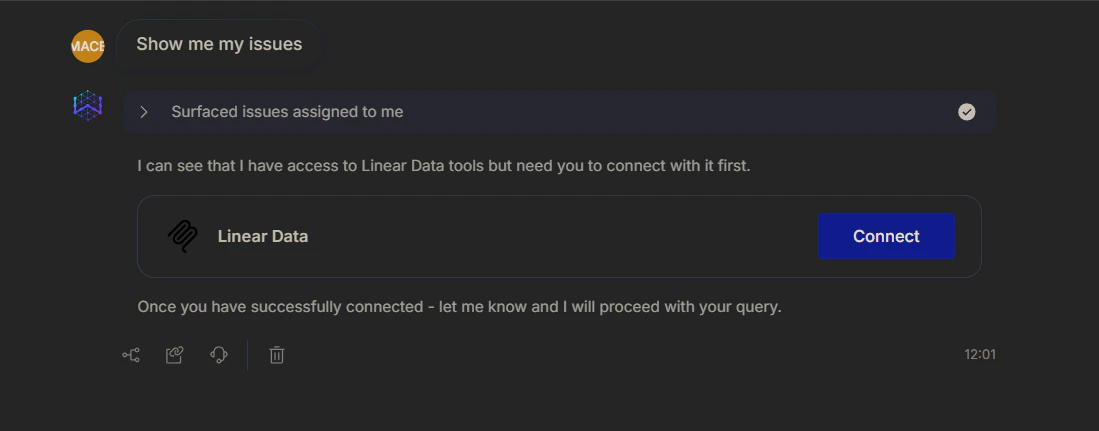
- Ask a question relevant to the connected tool (e.g., “Show me my issues”).
- If using OAuth, and you haven’t authenticated yet, WisdomAI will detect the need for authentication. Click Connect in the chat response and Authorize the request in the pop-up window.
WisdomAI will pull the requested data and generate the appropriate visualization or text response.
Next steps
Connect to Databricks
Connect to Databricks using a Client ID and Client Secret for authentication, enabling secure and controlled access to your data.
Connect to Google BigQuery
Connect to Google BigQuery using a Google Cloud Platform Service Account for secure and granular access to your data.
Connect to Amazon Redshift
Connect to Amazon Redshift using three methods: Direct Connection, SSH Tunnel, or VPC Peering, according to your network architecture.