

Prerequisites
Before you begin, make sure you have the following:- Your Amazon Redshift cluster endpoint, port, database name, and user credentials.
- Network access that allows WisdomAI to connect to your Redshift cluster. This may require configuring your firewall or AWS security groups.
- If using an SSH tunnel, you need the credentials for your bastion host.
- If using VPC peering, you need permissions to manage VPC settings in your AWS account.
Option 1: Direct connection
Use this method if your Redshift cluster is publicly accessible or if you have allowlisted WisdomAI’s CIDR blocks (35.238.115.103/32 and 34.82.248.105/32) in your security group.
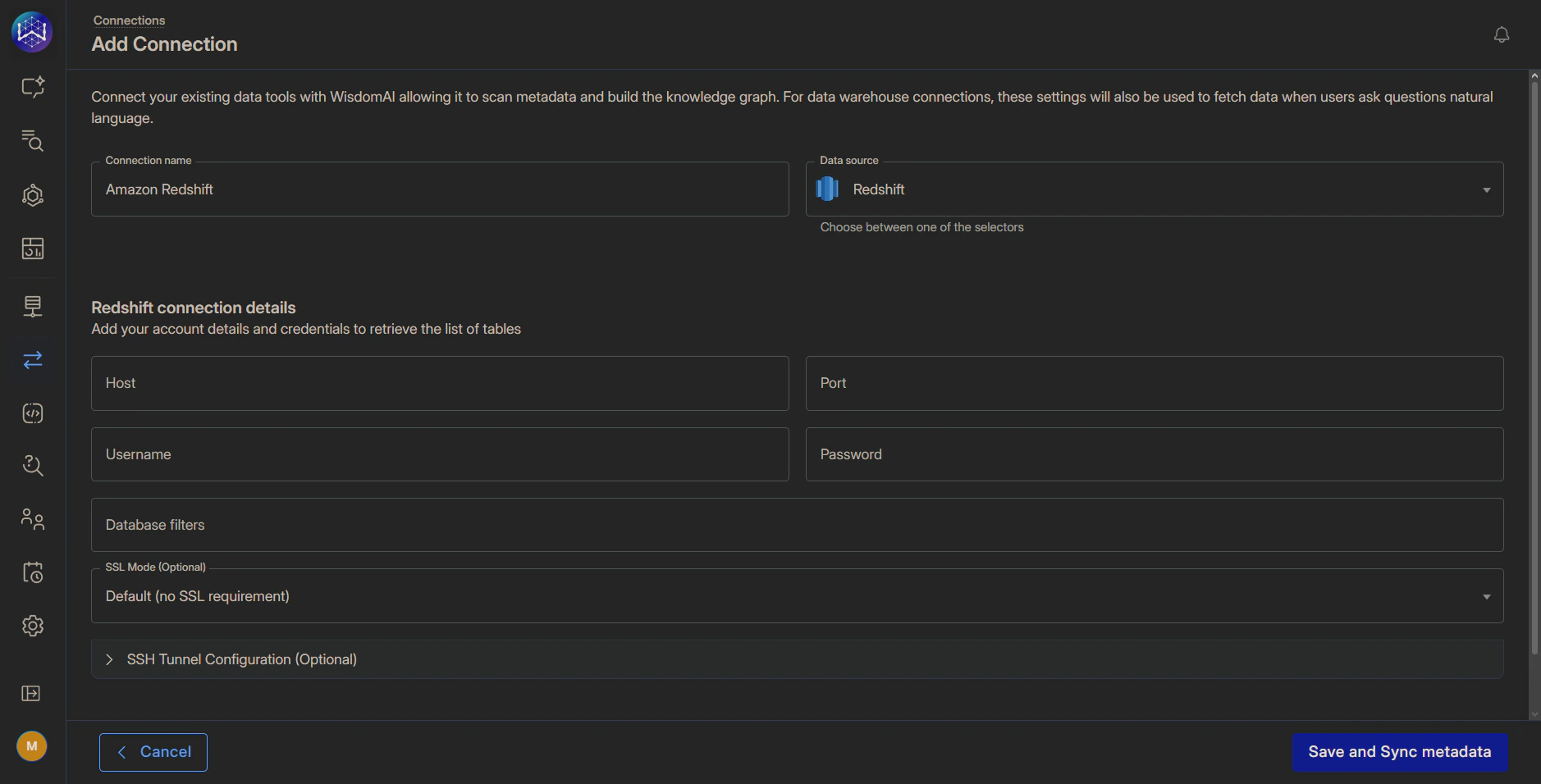
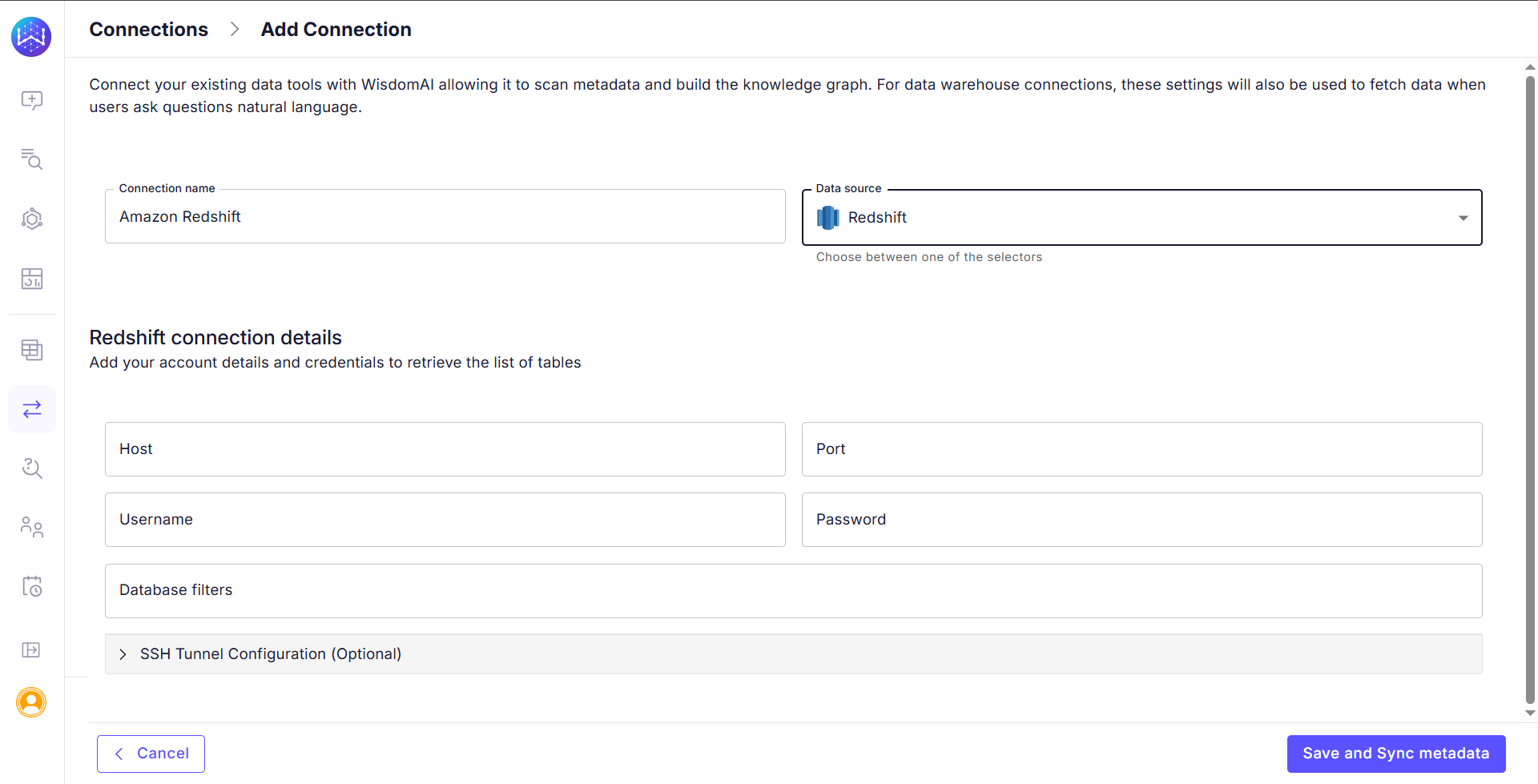
- In WisdomAl, navigate to the Connections section and click Add Connection.
- Select Redshift as the data source type.
- Fill in the connection details in the Redshift connection details section:
- Click Save and Sync metadata. WisdomAl will use the provided credentials to connect to your Redshift account and scan the metadata of the specified databases and tables.
Option 2: Connect via an SSH tunnel
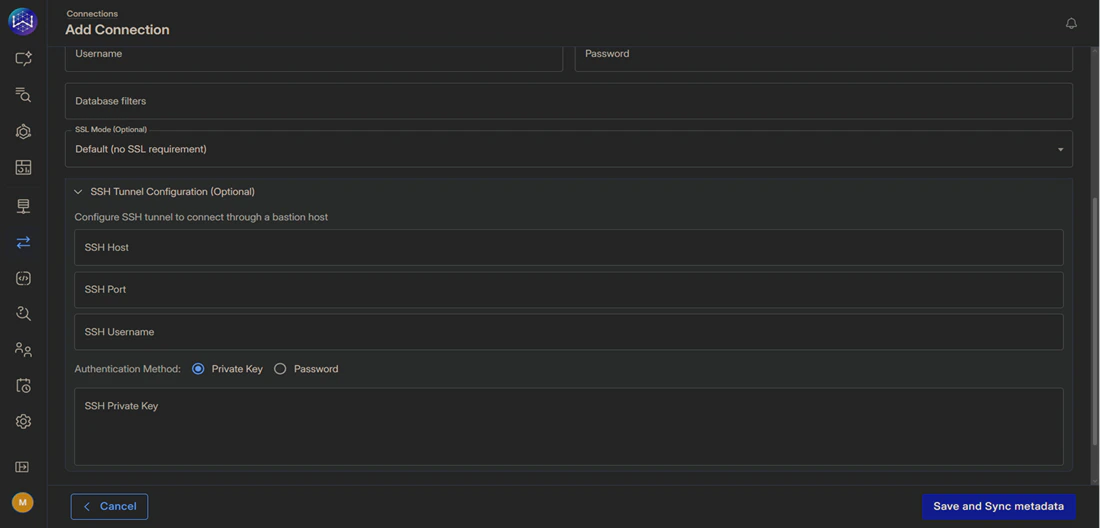
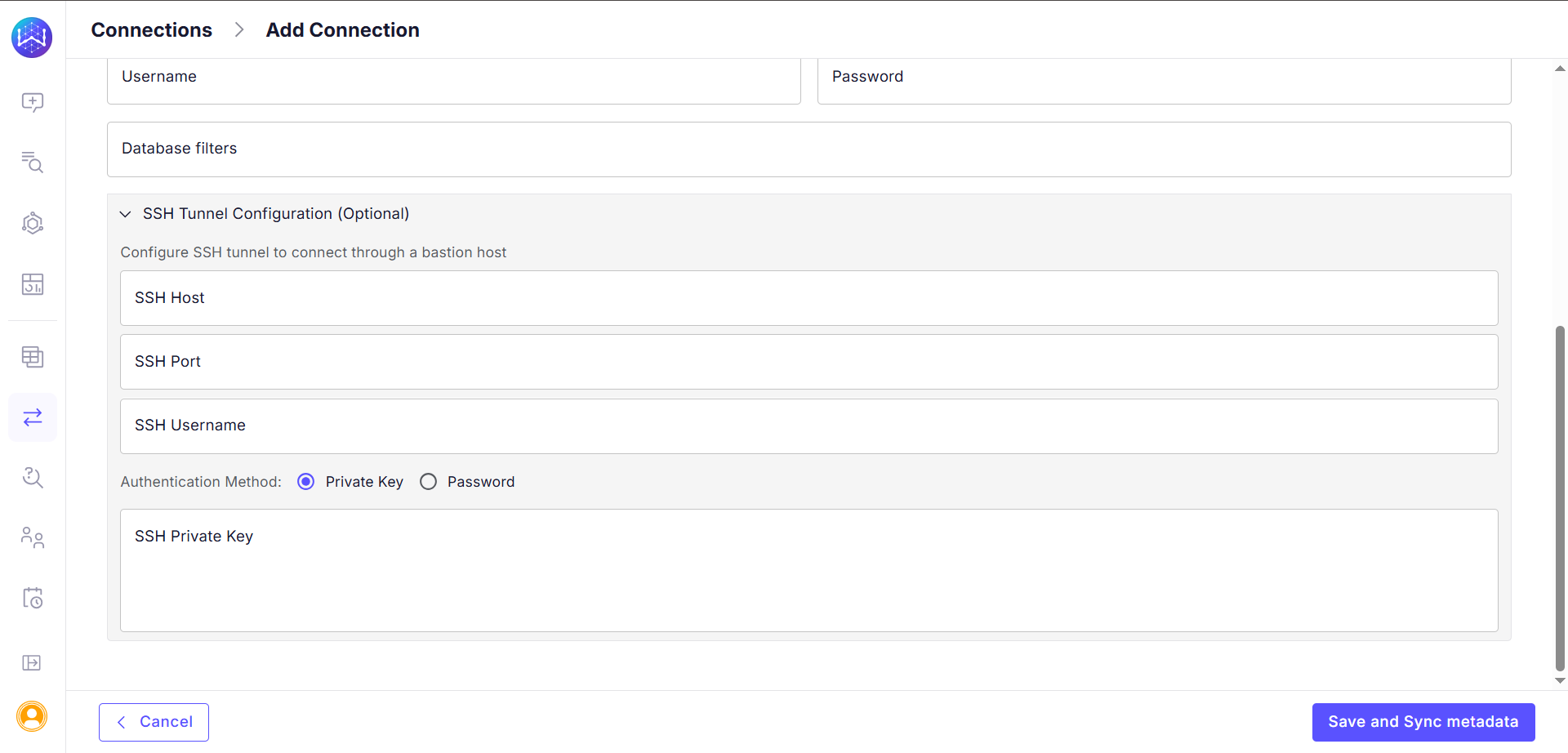
Use this method to securely connect to a Redshift cluster that is not publicly accessible by routing traffic through a bastion host.- On the Add Connection page, fill in the direct connection details and expand the SSH Tunnel Configuration section.
- Complete the SSH Tunnel configuration fields.
- Click Save and Sync metadata.
Option 3: Connect via VPC peering
This method establishes a private and secure network connection between WisdomAI’s AWS environment and your Amazon VPC, preventing exposure to the public internet. This is a standardized procedure for all supported data sources hosted on AWS. For the complete, step-by-step instructions, please refer to our comprehensive guide: Connect via AWS VPC Peering.Next steps
Connect to Databricks
Connect to Databricks using a Client ID and Client Secret for authentication, enabling secure and controlled access to your data.
Connect to Google BigQuery
Connect to Google BigQuery using a Google Cloud Platform Service Account for secure and granular access to your data.
Connect and Test Tutorial
Walk through the initial setup to connect a data source and run your first query.